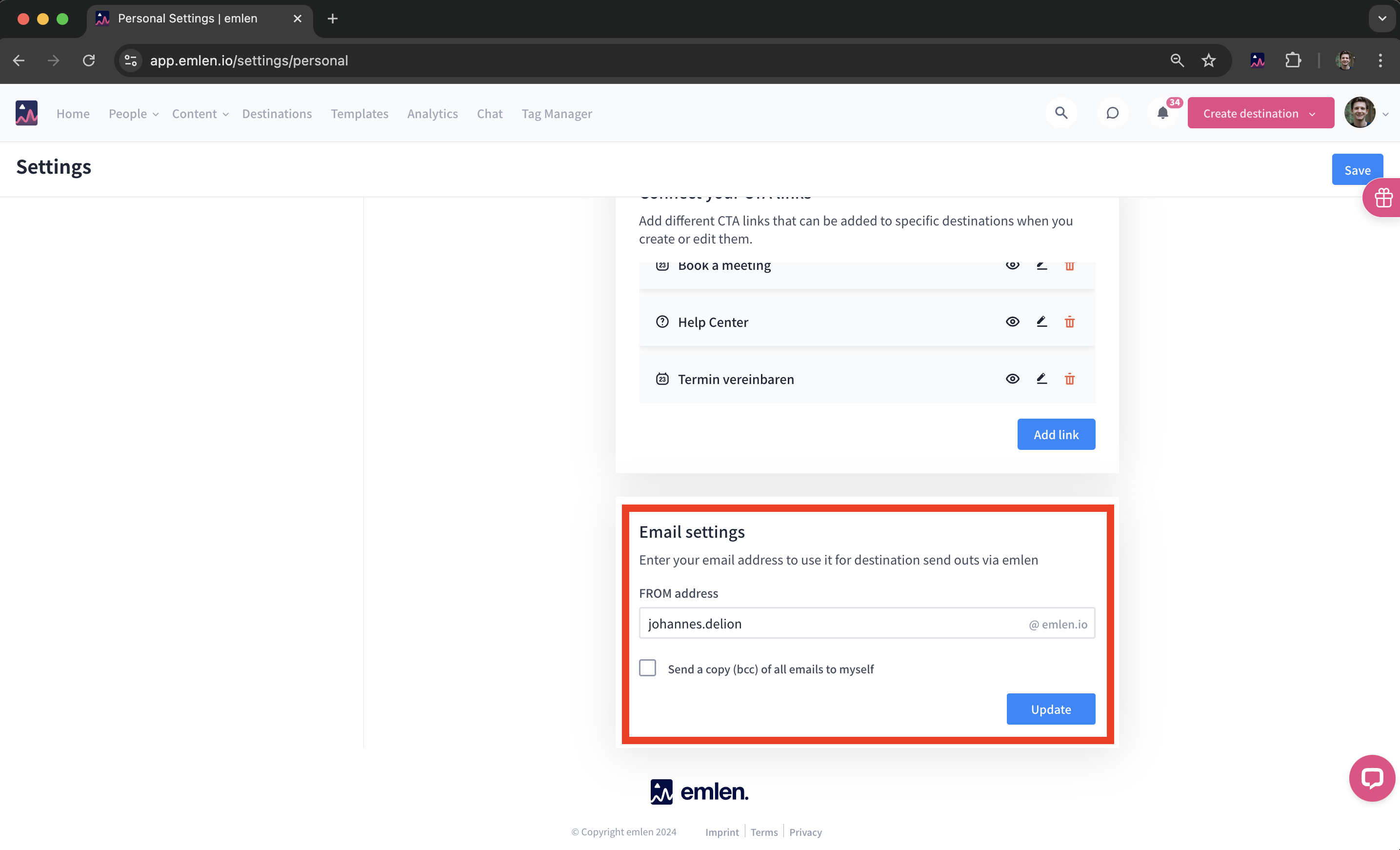
Connect your email domain
This guide will help you connect your company email domain to emlen so you can send emails (like Destination update notifications) from your business email via emlen.
Note: You’ll likely need help from your IT department. Please read the instructions thoroughly and discuss them with your IT team before starting.
1. Go to the email domain settings
2. Click on "Customize email domain"
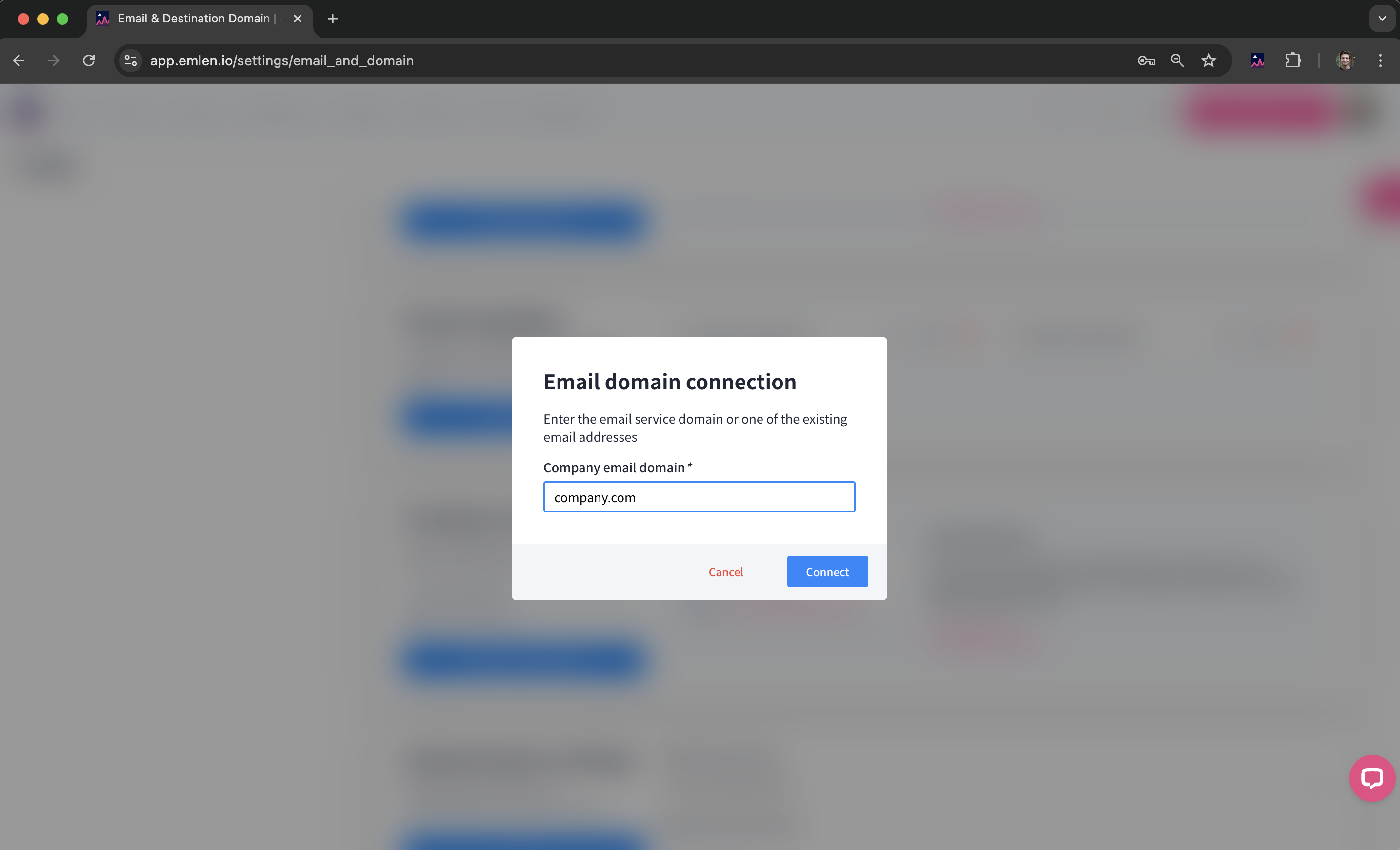
3. Enter your company's email domain
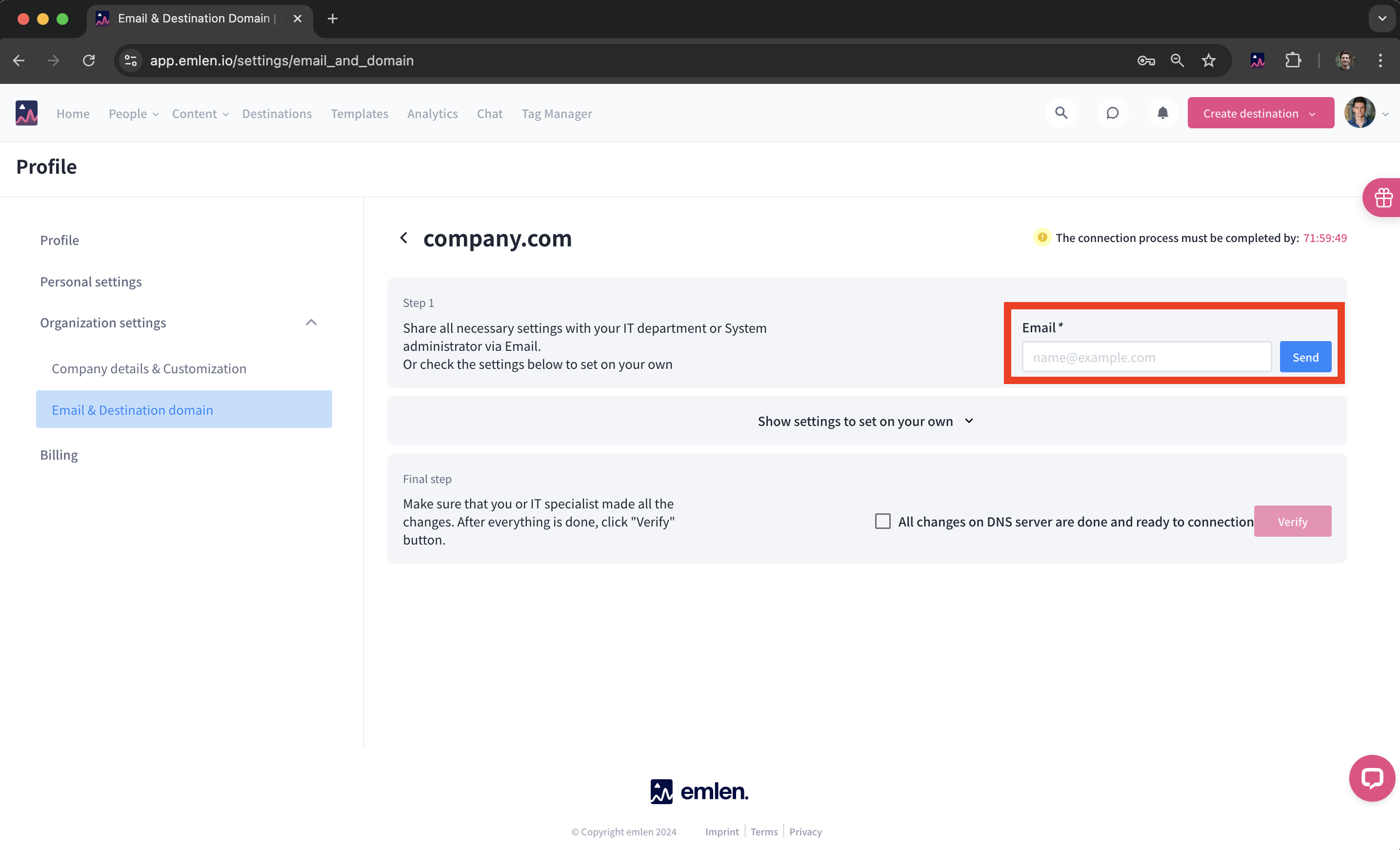
4. Send the generated DNS records to your IT contact
Alternatively, you can set the records yourself.
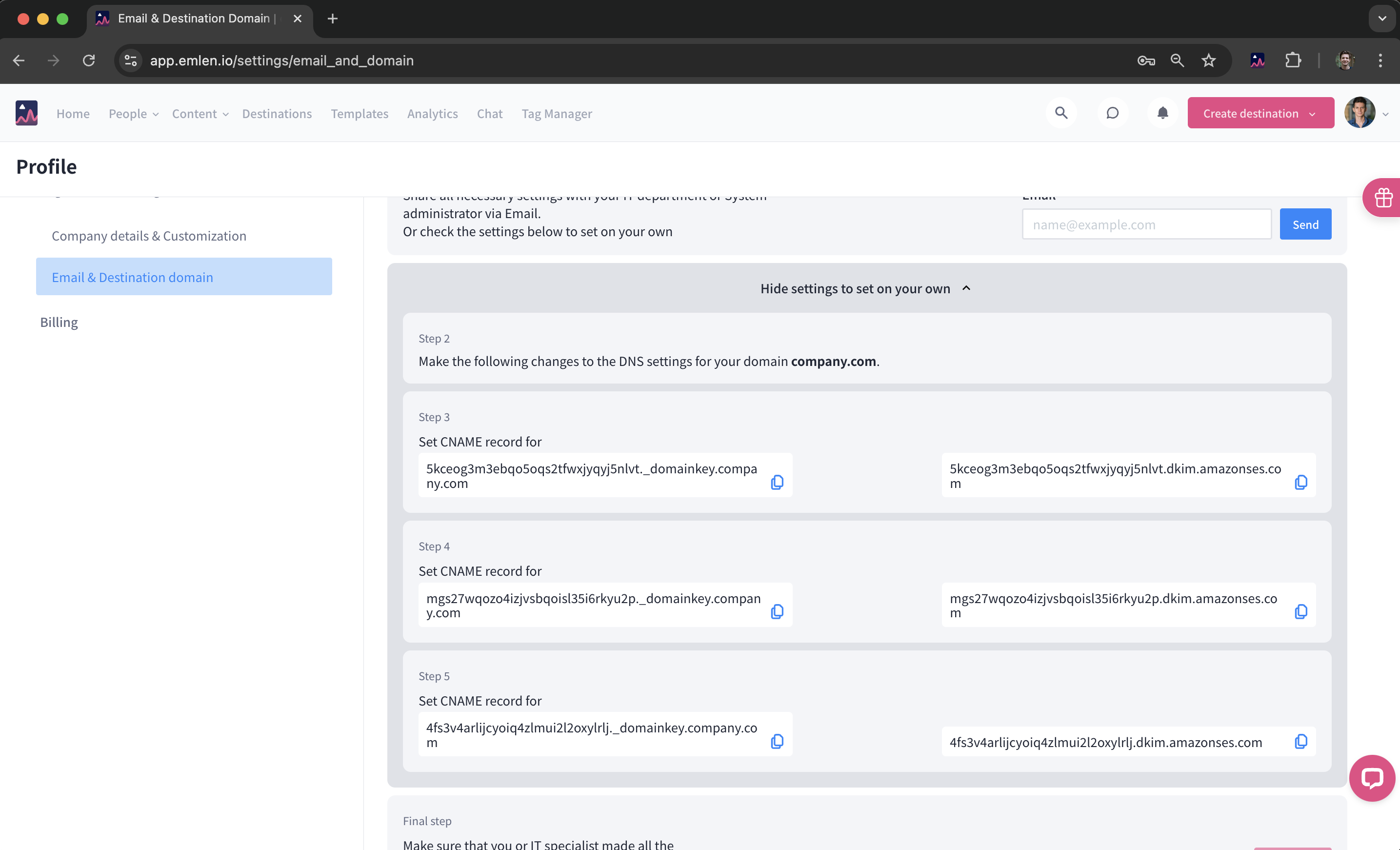
Important: You have 72 hours to complete the DNS setup.
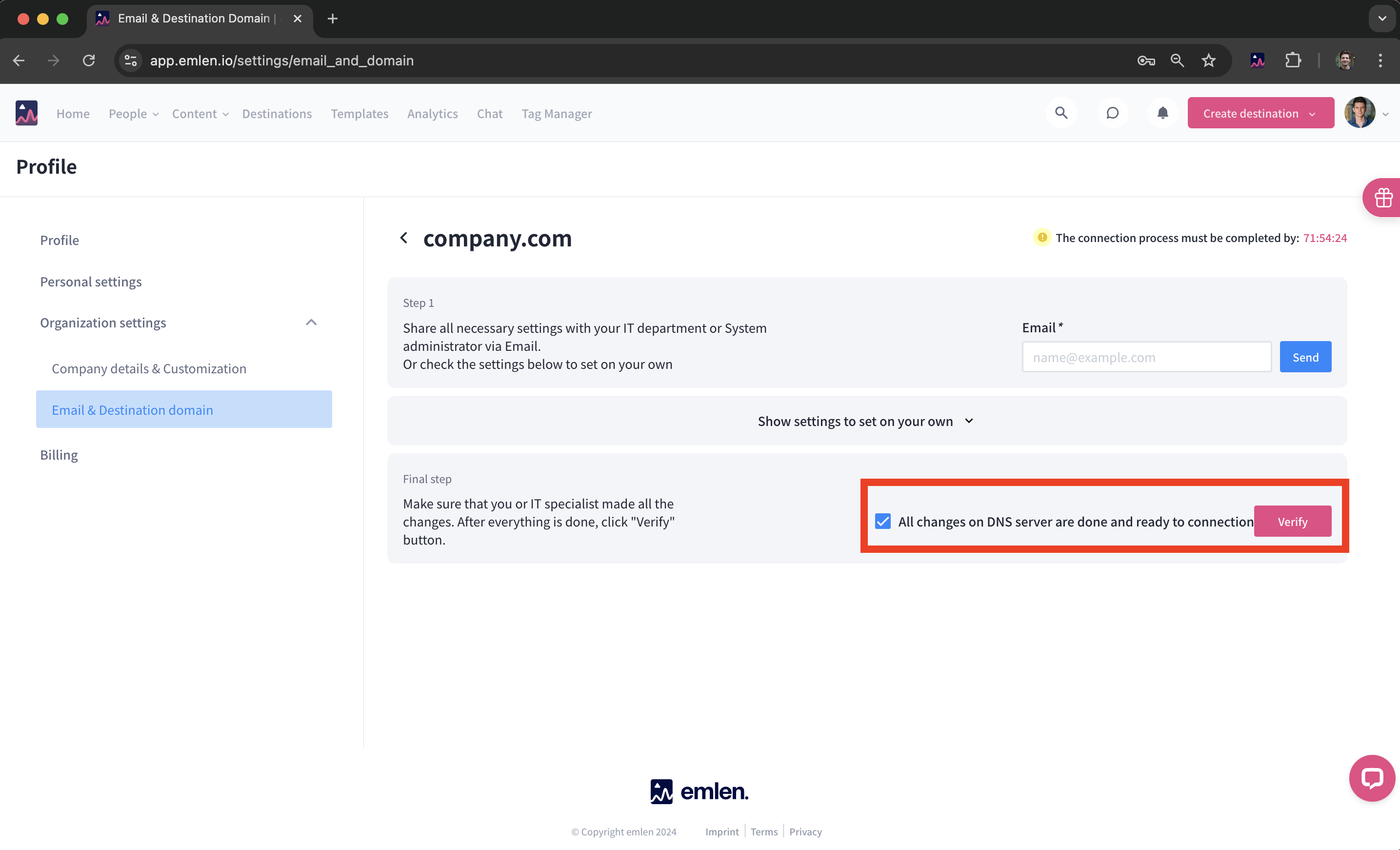
5. Verifiy - Once your IT team confirms the changes, return to the settings page.
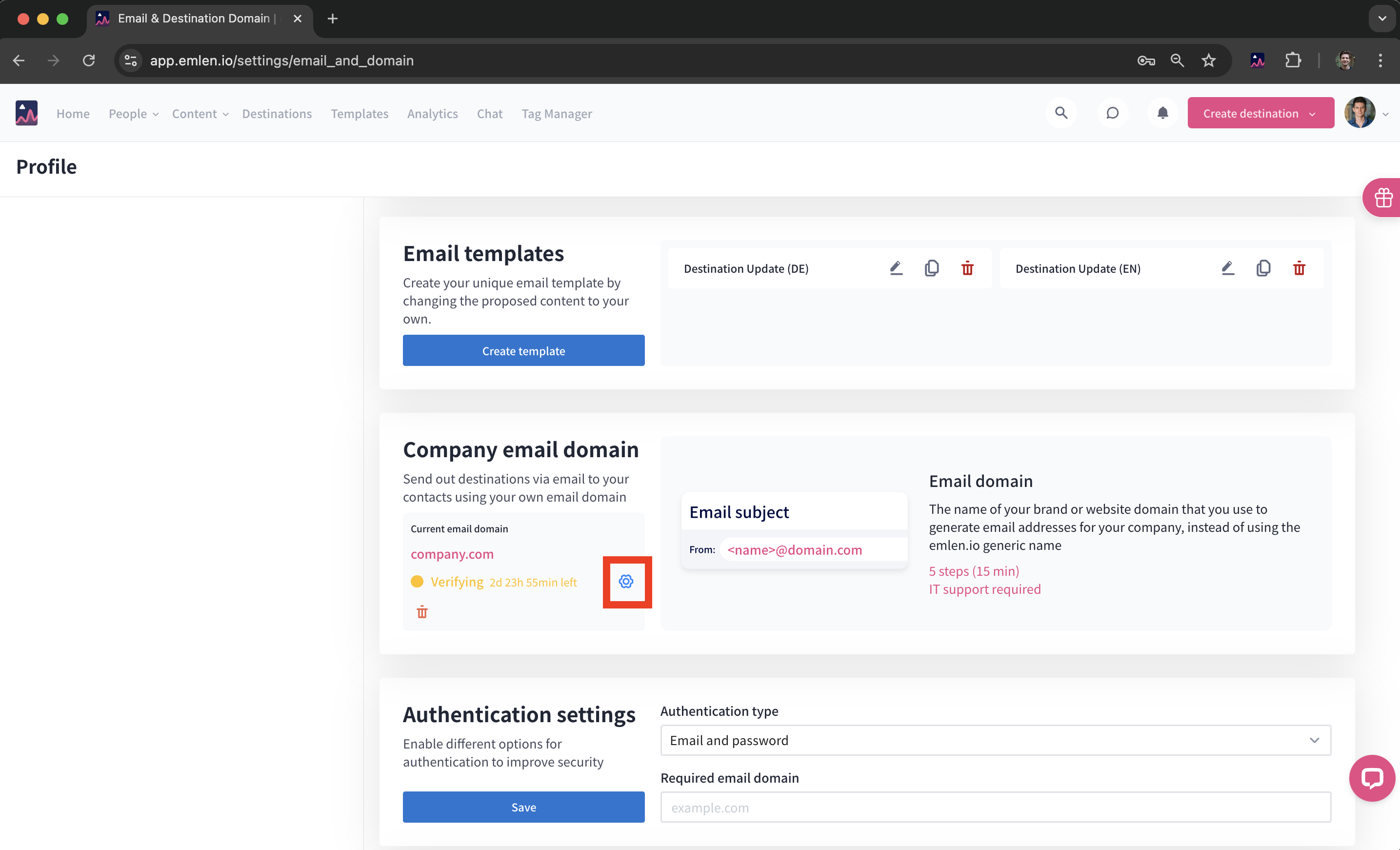
And click "Verify".
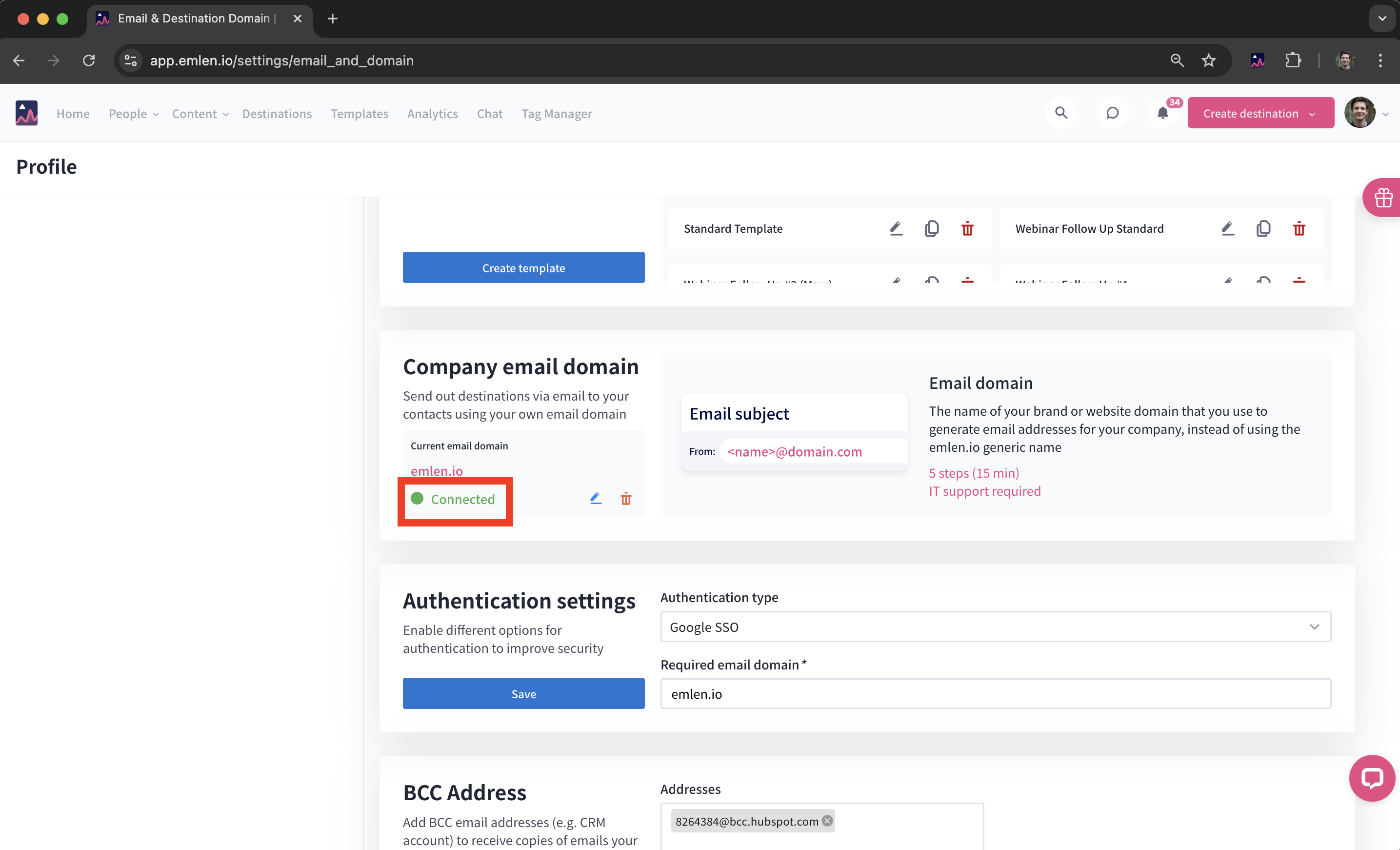
6. Your email domain is now connected
7. Set user email addresses
After connecting, each emlen user needs to enter their business email address in their profile. This is necessary for outgoing emails to display their email address as the sender. Please ensure everyone on the team is informed to complete this step.