HubSpot
The emlen–HubSpot integration makes it easy to keep your CRM and emlen in sync. With this integration, you can:
- Sync contacts, leads, and companies (one-way or two-way)
- Track emlen activity events directly on HubSpot (contact or deal page)
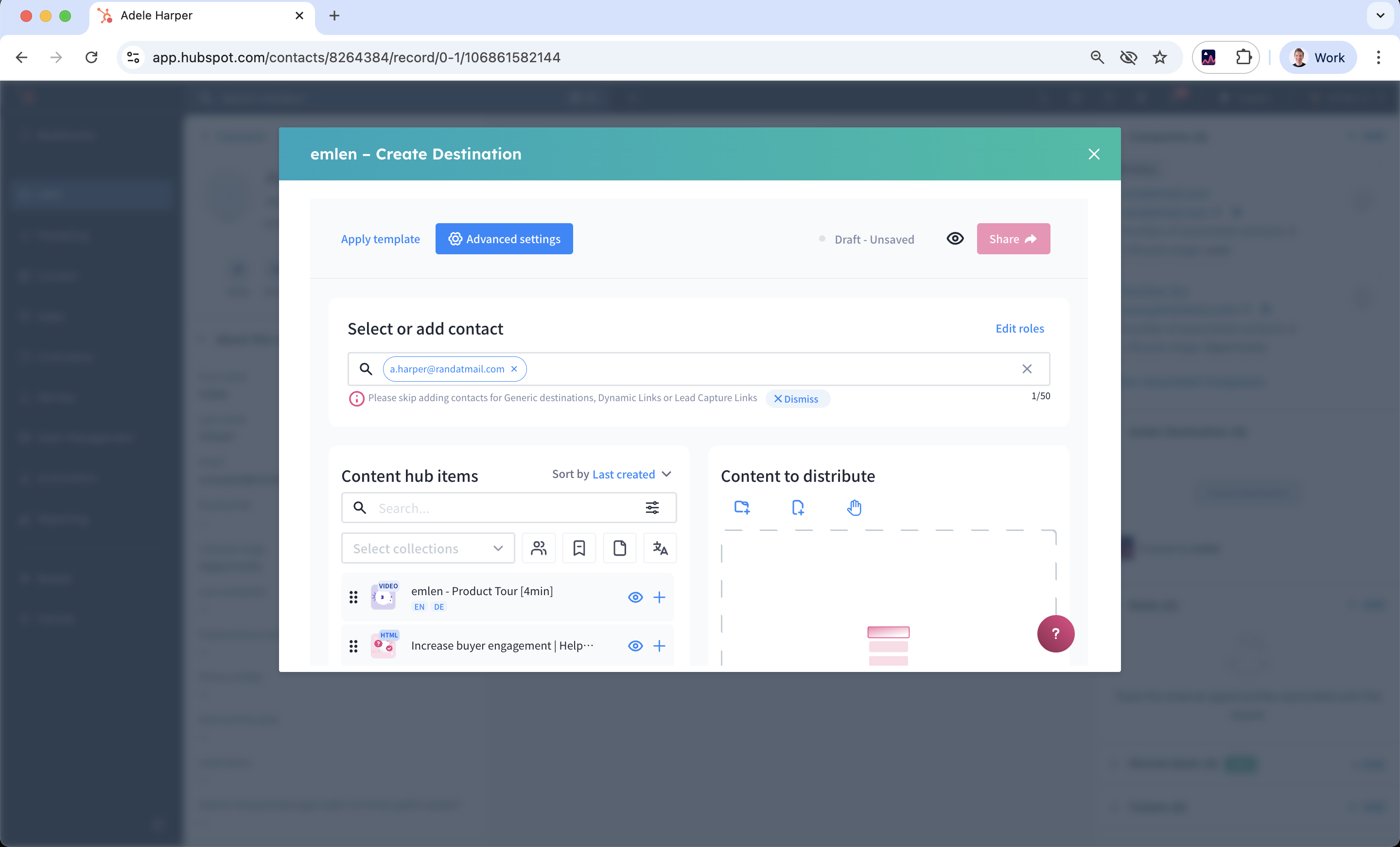
- Create emlen Destinations from within HubSpot
Setting up the HubSpot integration
- Go to the Integrations page in emlen.
- Select Connect under HubSpot.
- Follow the confirmation process.
- On the Configure this integration page, choose your sync settings.
Synchronization method
You can decide how contacts sync between HubSpot and emlen:
- Sync contacts from HubSpot to emlen only → One-way sync from HubSpot into emlen
- Sync contacts from emlen to HubSpot only → One-way sync from emlen into HubSpot
- Two-way sync → Keep contacts synced in both directions
- Do not sync → No contact sync
Tip: When emlen is used effectively (for example, if a Destination is shared internally), it can surface new contacts. To ensure these contacts are also available in your CRM, we recommend selecting Two-way sync.
Note: New contacts created in HubSpot via this integration are marked with these contact properties:
- Source drill-down 1: INTEGRATION
- Source drill-down 2: emlen
Delete contacts from HubSpot when deleted from emlen?
If you enable sync from emlen to HubSpot, you can choose whether deleting a contact in emlen also deletes it in HubSpot.
Also sync emlen contact activity to HubSpot?
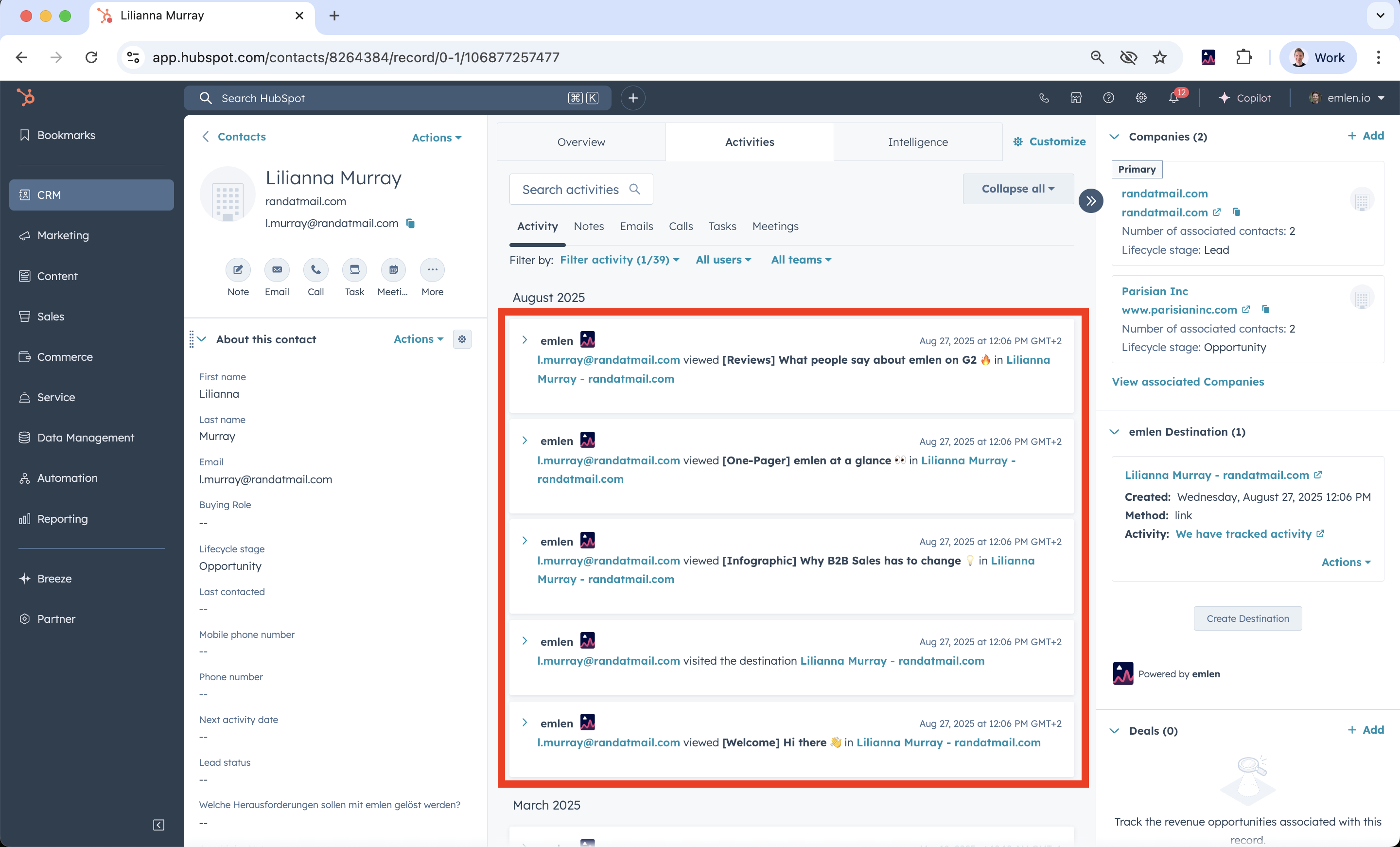
When enabled, emlen pushes engagement activity to HubSpot at the contact and deal level.
👉 Make sure to check the Activity Filter in HubSpot and enable emlen.
Deal view:
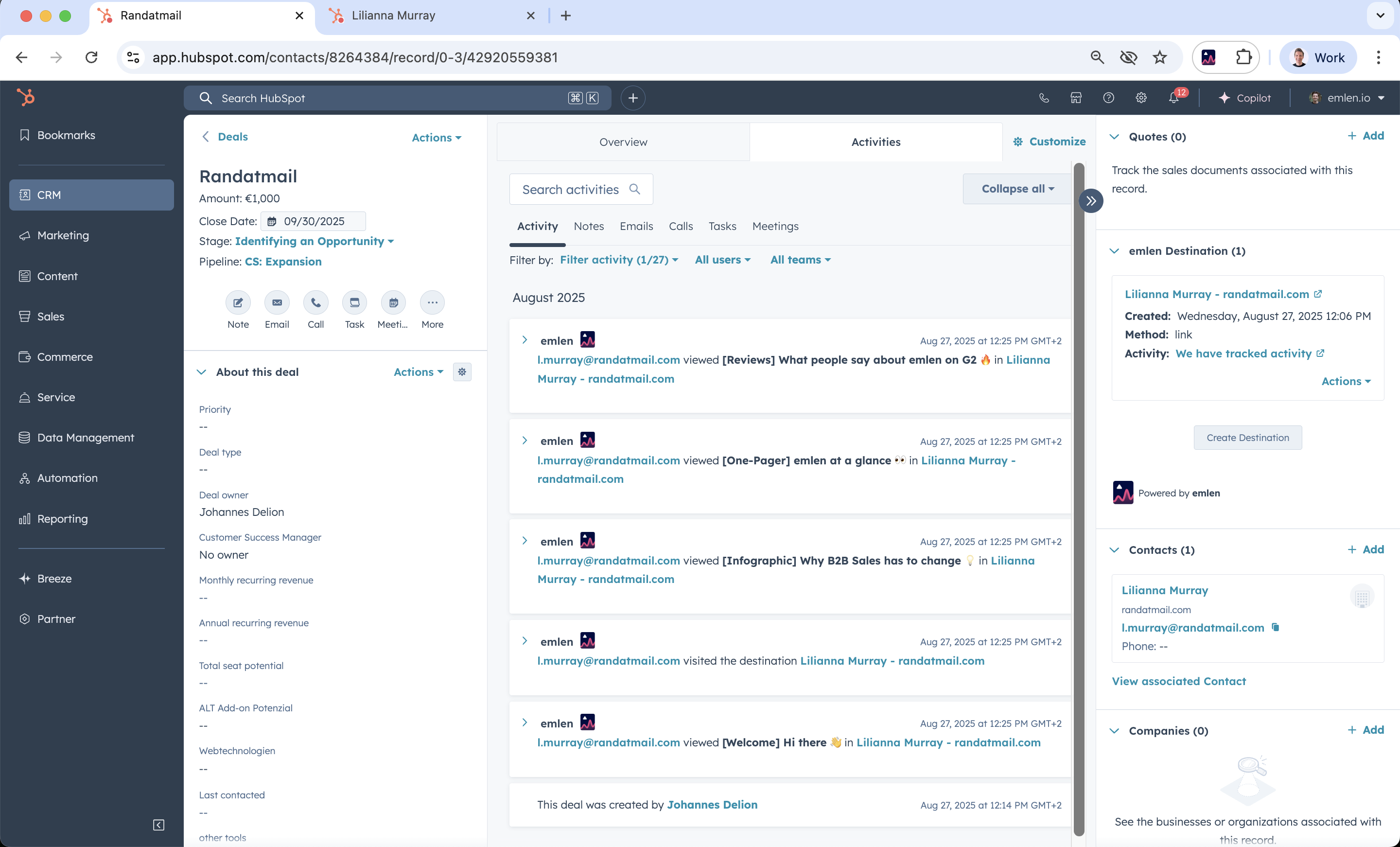
Note: Activities at the deal level are only tracked from the time the deal is created onward. Historical activity that occurred at the contact level before the deal was created will not be visible on the deal.
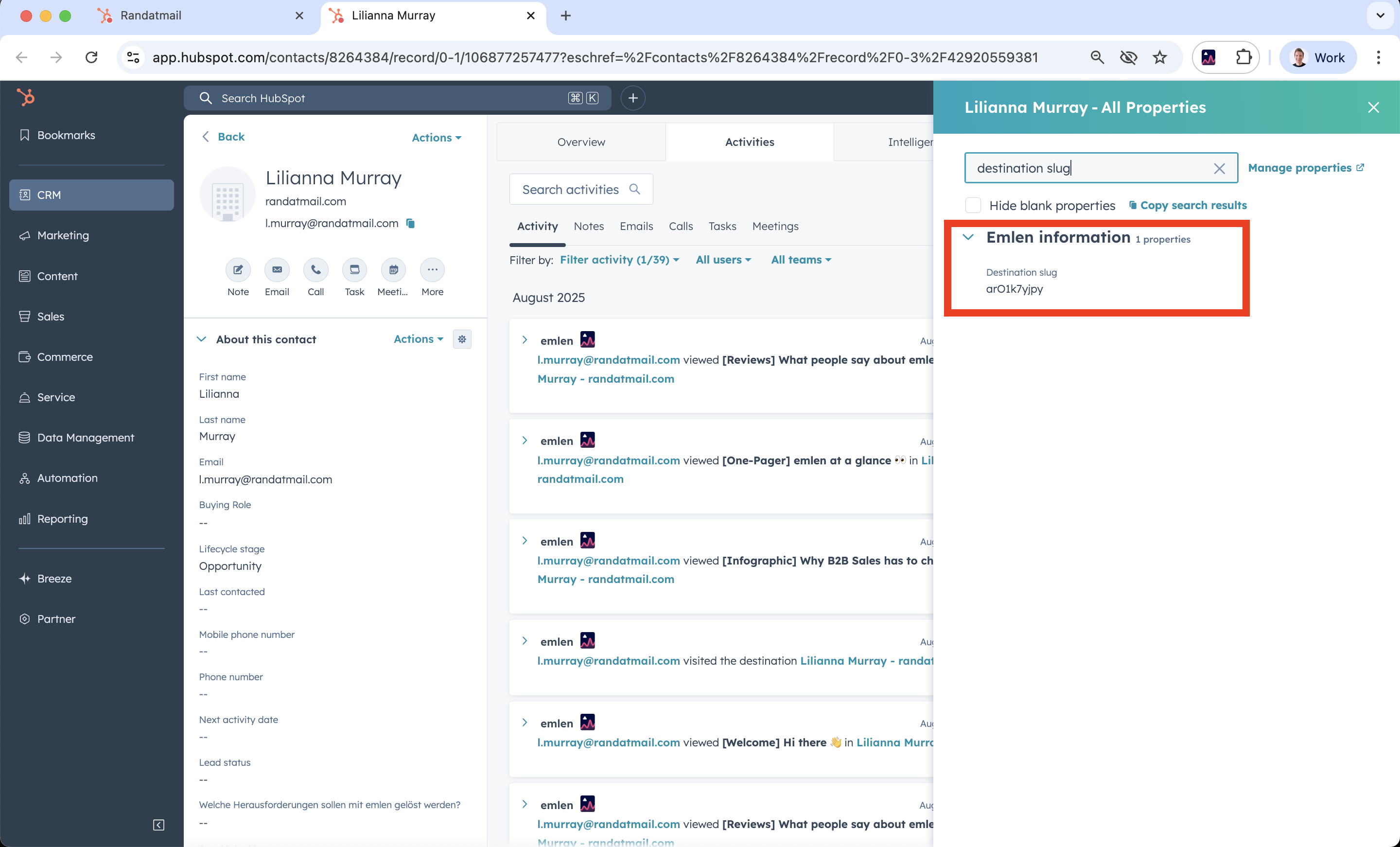
Also sync emlen destination slug to your HubSpot deals and contacts?
You can sync the Destination slug (Destination ID) from emlen to HubSpot:
- On contacts if linked to an emlen Destination
- On deals if connected to an emlen Destination
Create emlen Destinations in HubSpot
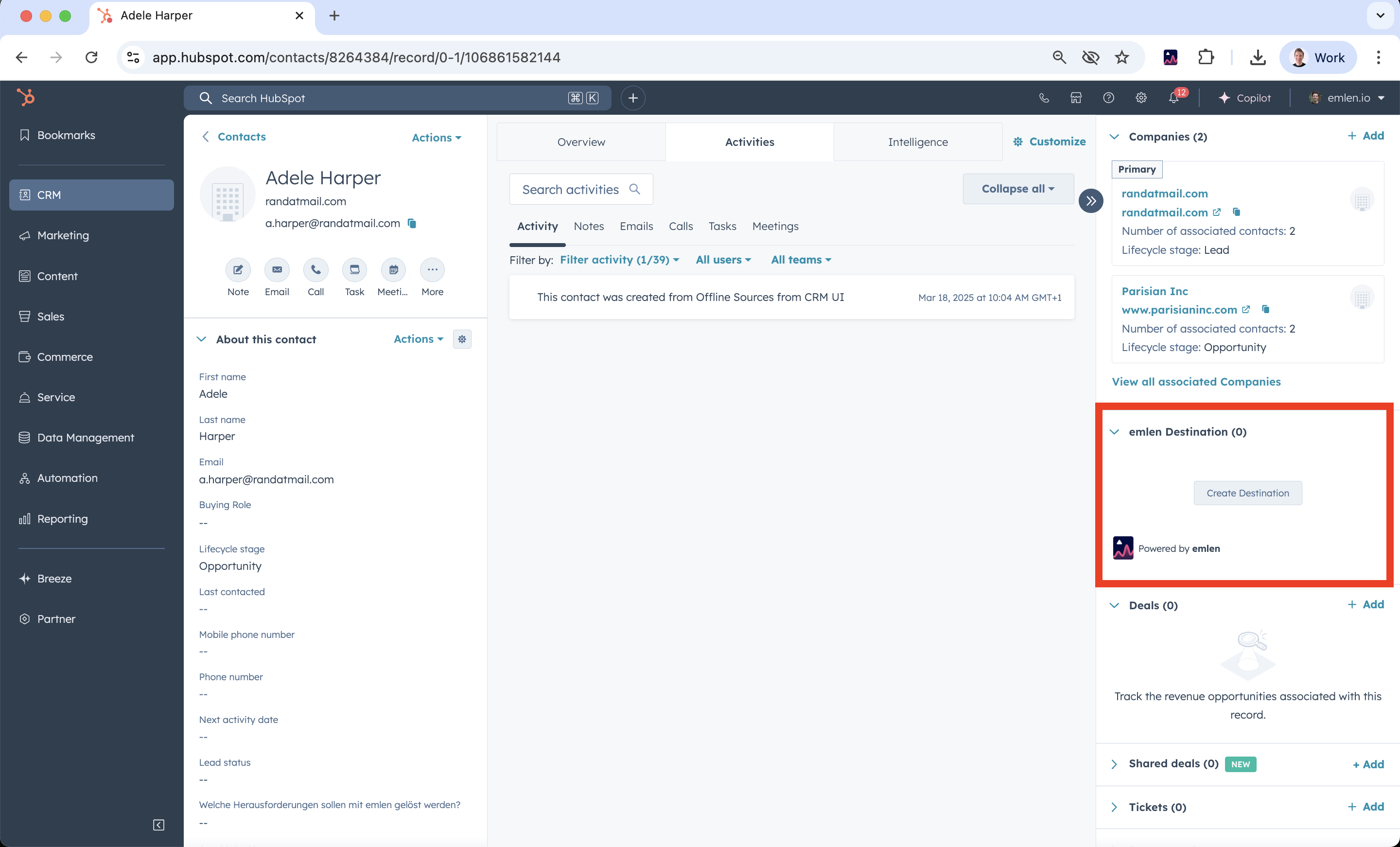
After integrating, you’ll see the emlen widget on the right-hand side of HubSpot contact and deal pages. From here, you can create a Destination directly—automatically linking it to the contact and deal.