End-to-end CRM workflow
This guide explains how to leverage emlen Destinations throughout the customer journey — from the first touchpoint (e.g., your website) to account management for existing customers. We’ll also explore how to manage and automate this process in HubSpot, with similar logic applicable to Salesforce, MS Dynamics, or Pipedrive.
1. Lead stage: early touchpoints
Key methods for sharing emlen Destinations early in the process:
- Website (inbound): Add a Destination behind a Call-to-Action (CTA) button
- (Cold) email campaigns
- Cold calls
- LinkedIn outreach (1:1)
- LinkedIn (behind an Ad)
- Offline events: Use QR codes leading to an emlen Destination
Example workflows:
1.1 Generic Destination on website
Place a generic emlen Destination behind a CTA (e.g., “Learn more” or a product tour). Ensure it offers enough value for prospects to share their email.
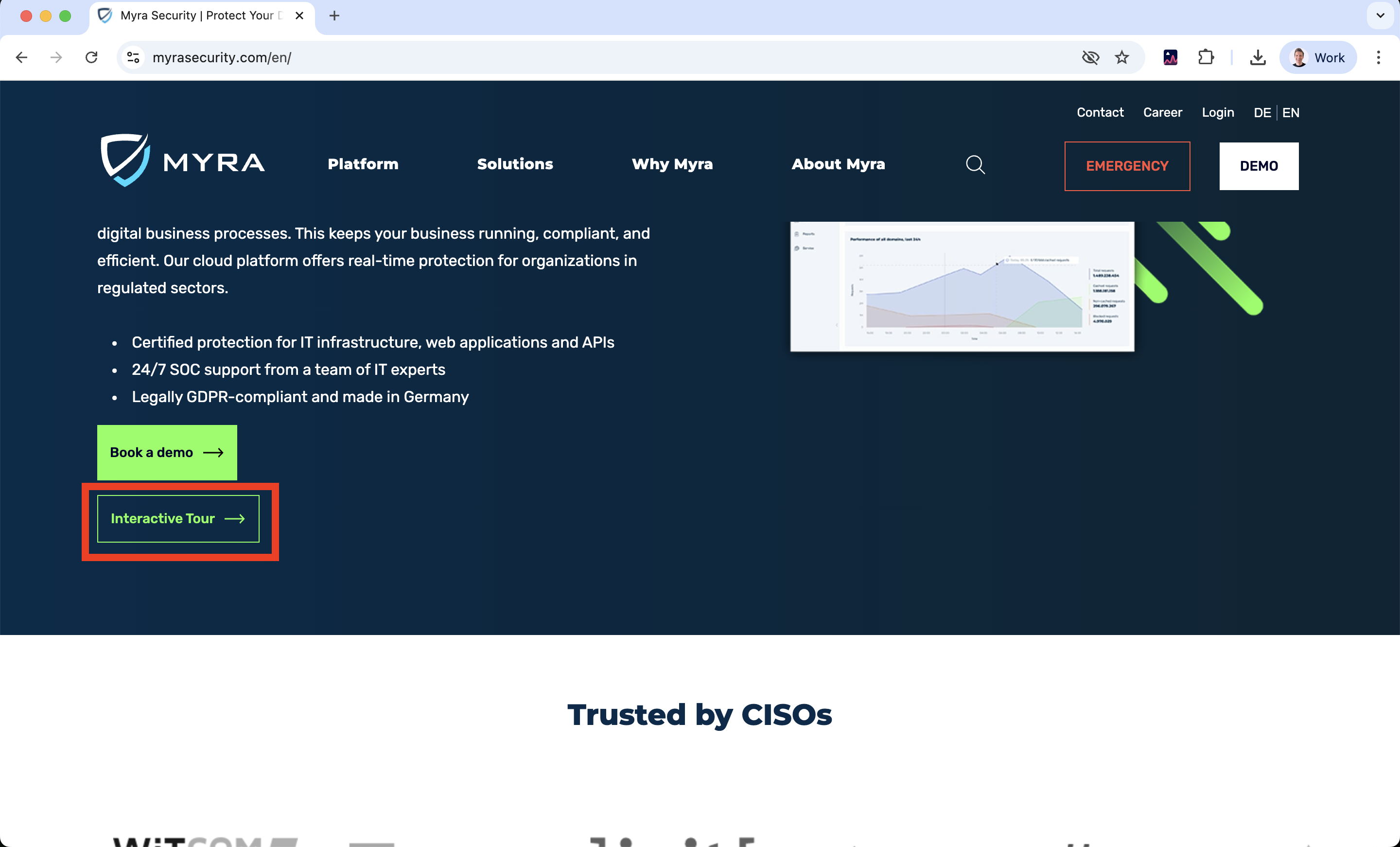
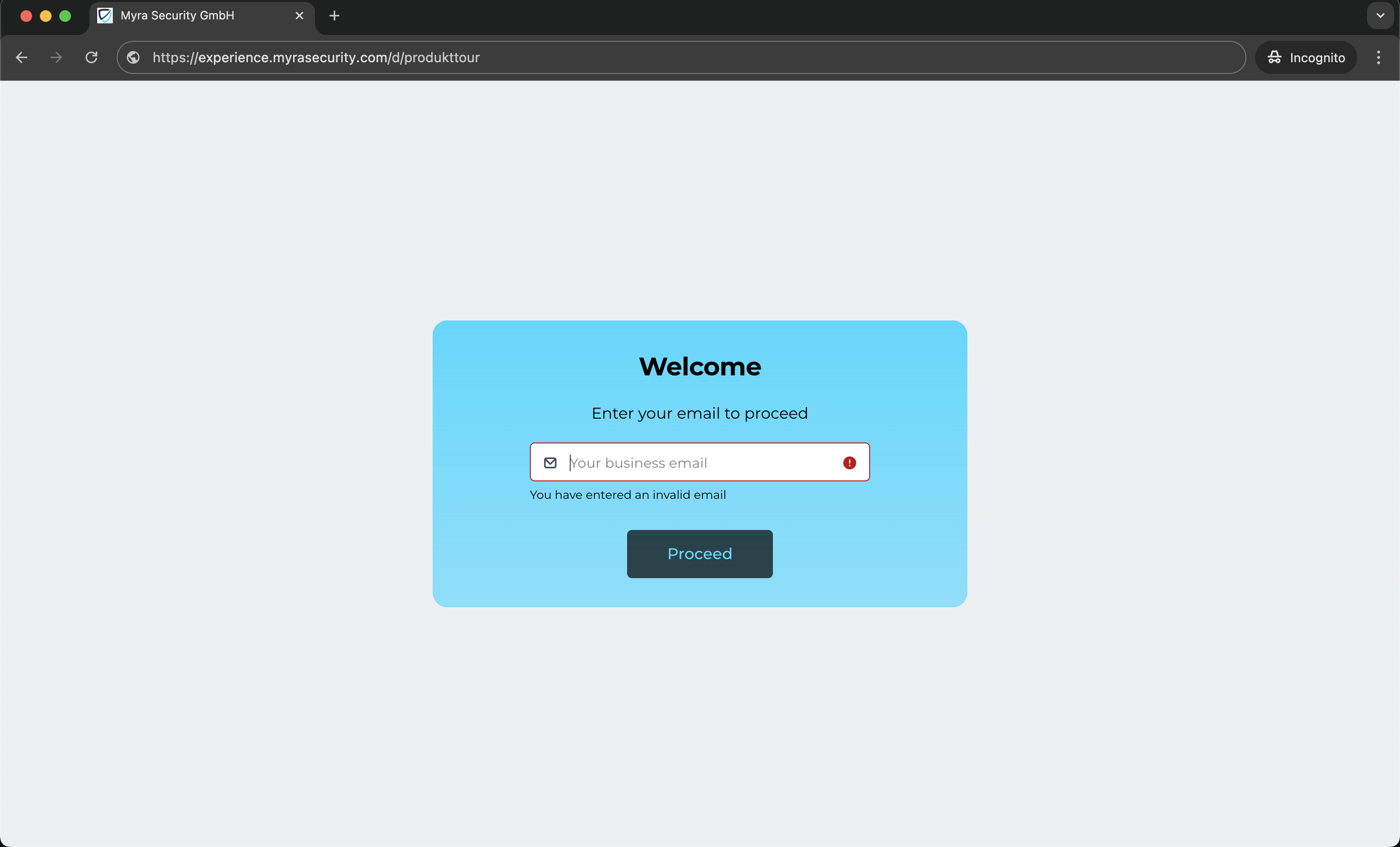
Contacts are automatically created in emlen and synced with HubSpot (if you have 2-way-sync enabled).
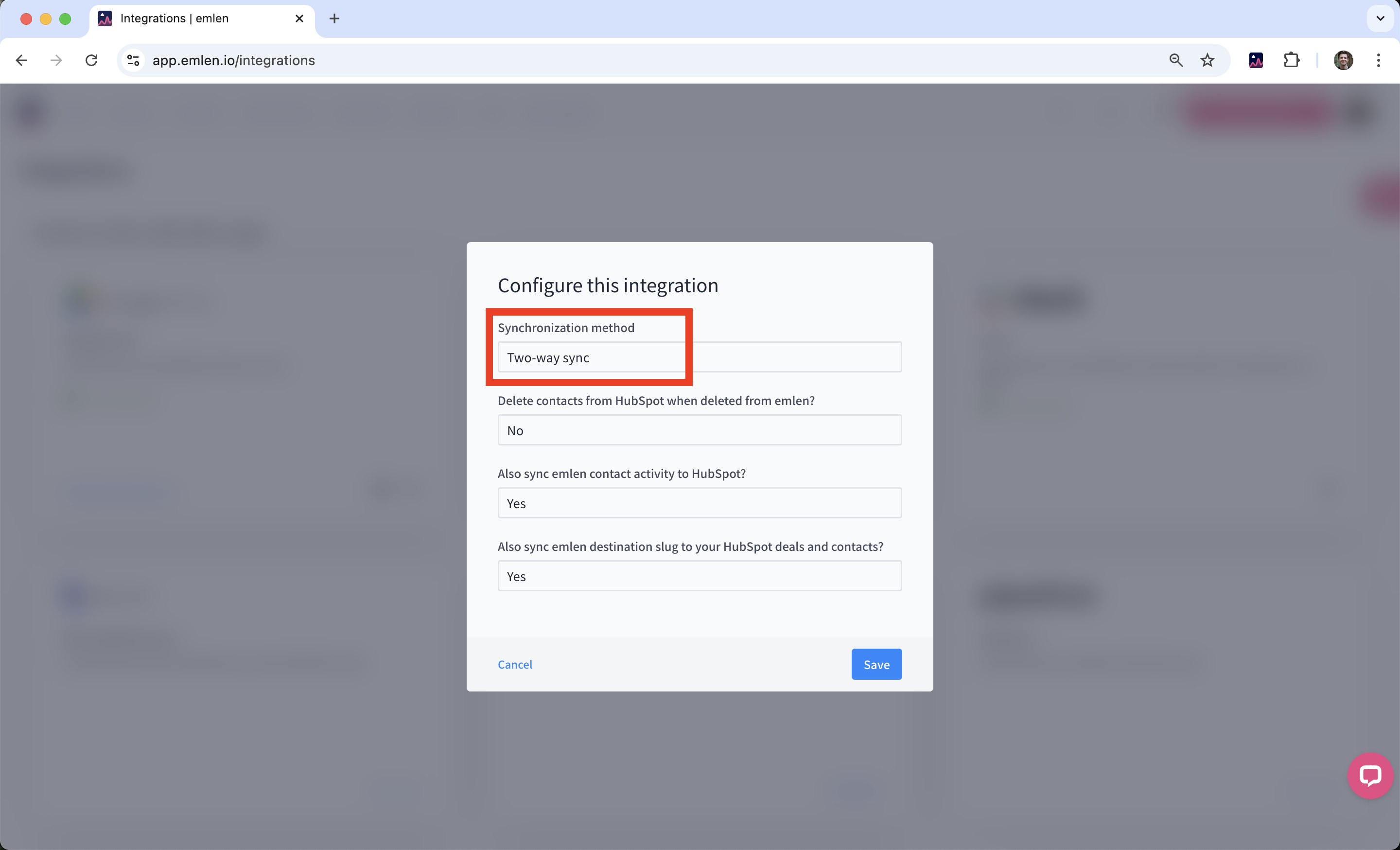
When the new contact is created, two properties are populared:
- Original Traffic Source Drill-down 1 = INTEGRATION
- Original Traffic Source Drill-down 2 = emlen
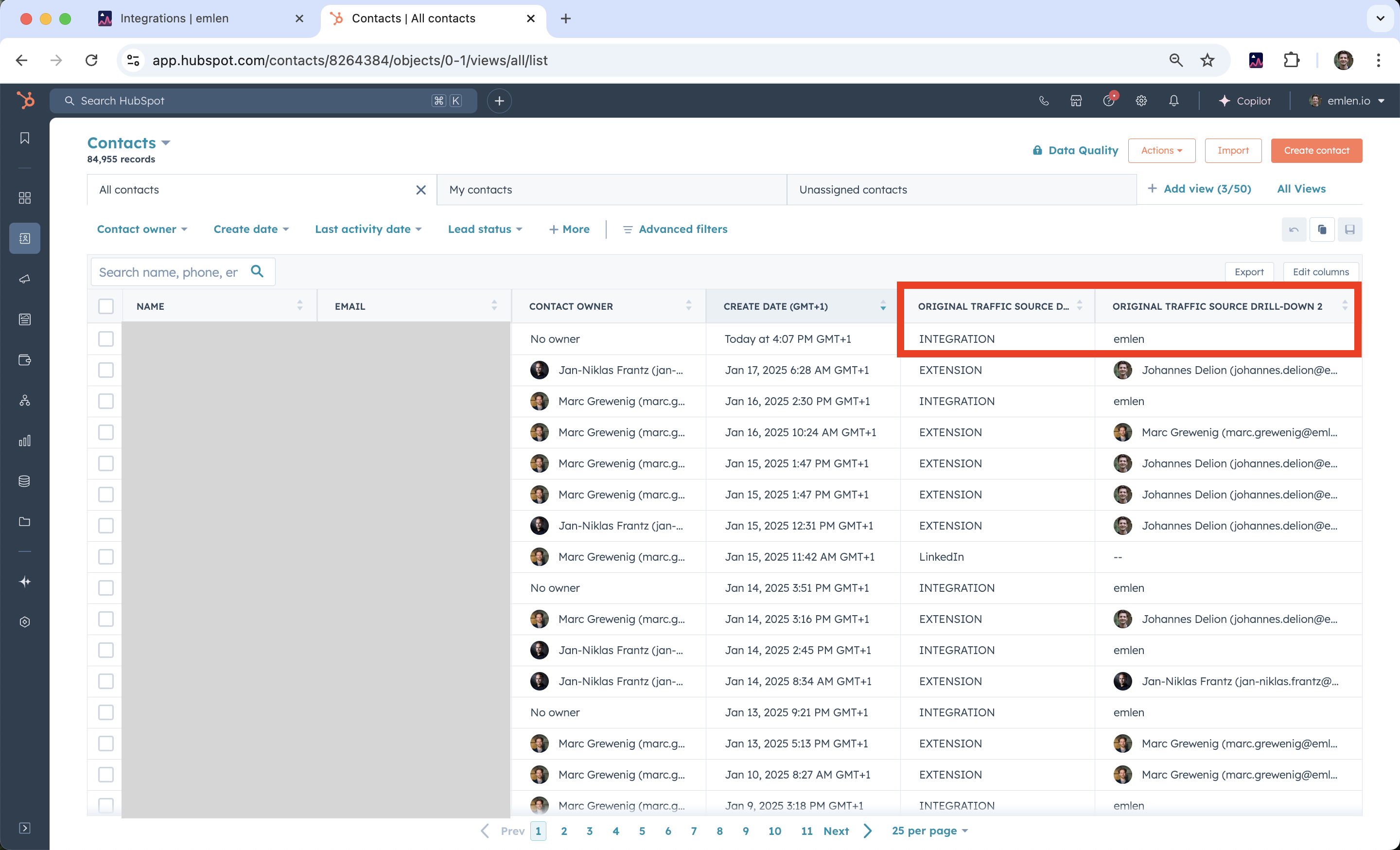
With these properties you can trigger a HubSpot workflow, e.g. to
- Assign leads to SDRs / Account Executives
- Score leads based on firmographics
- Create follow-up tasks if there’s no recent activity
If the contact has accepted tracking, emlen analytics will appear on the HubSpot contact page. Additionally, the linked emlen Destination will be visible in the “emlen Destination” widget on the right-hand side.
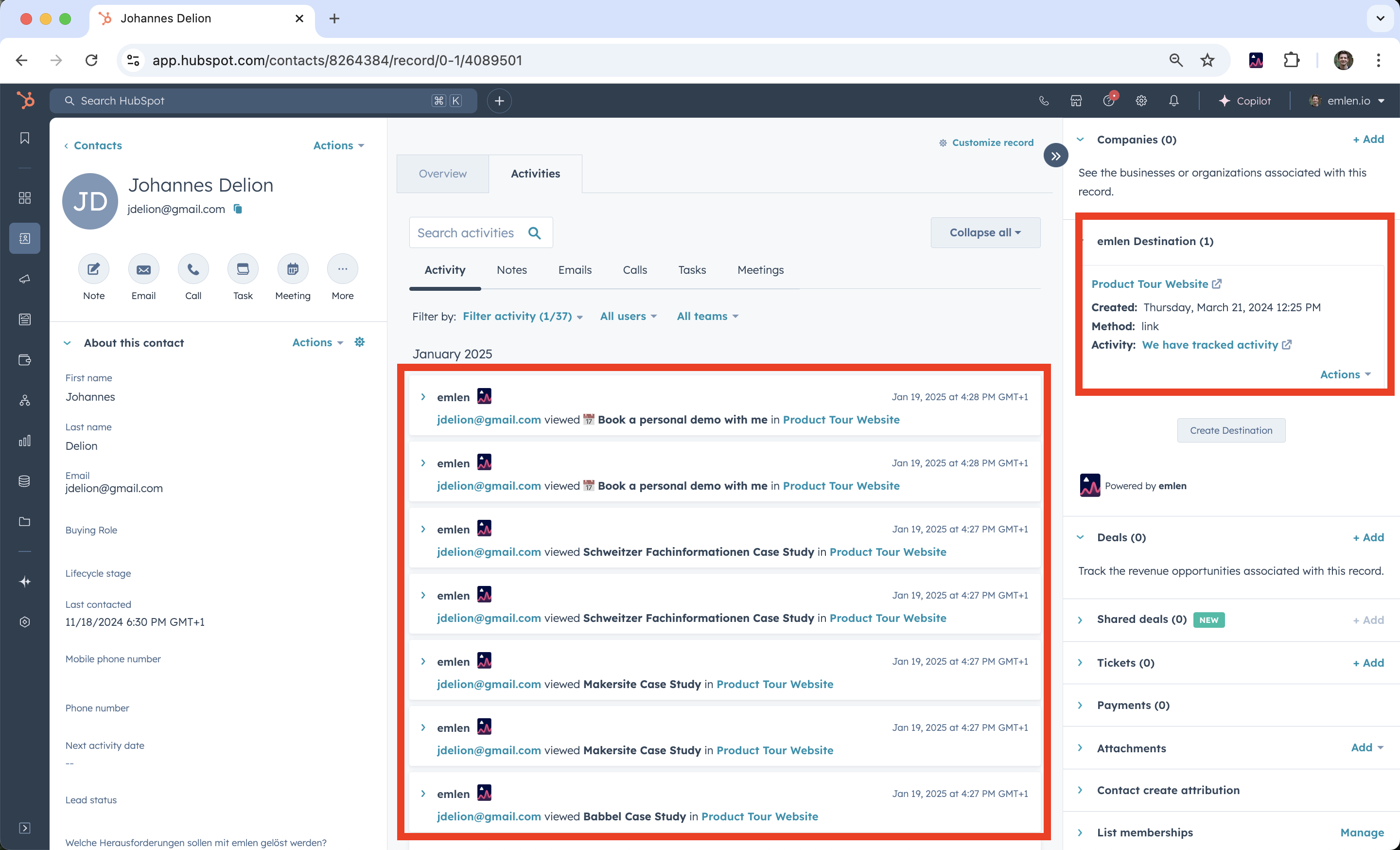
Workflows can be triggered based on emlen activity events. For instance, if an event is older than two weeks and no demo has been booked, you can automate a task for the Contact Owner to follow up with the contact.
1.2 HubSpot lead form on your website + dynamic link
Another option is to integrate a HubSpot lead form with your website’s Call-to-Action (CTA). Click here to learn how or contact HubSpot directly for assistance.
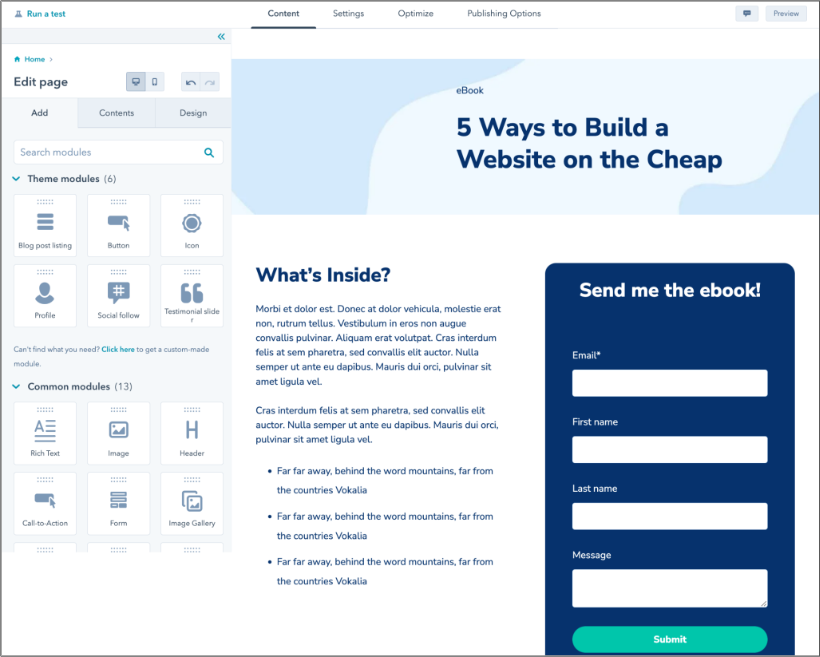
This setup automatically creates a new contact in HubSpot. To provide an emlen Destination, you can use the dynamic link feature. Unlike the generic Destination option, the dynamic link creates an individual Destination for each contact, offering several benefits:
- No Email Verification Required: Since each Destination is tied to a single contact, email verification becomes unnecessary
- Personalized Experience: You can greet the contact personally within their unique Destination
- Future Customization: The Destination remains customizable for further personalization
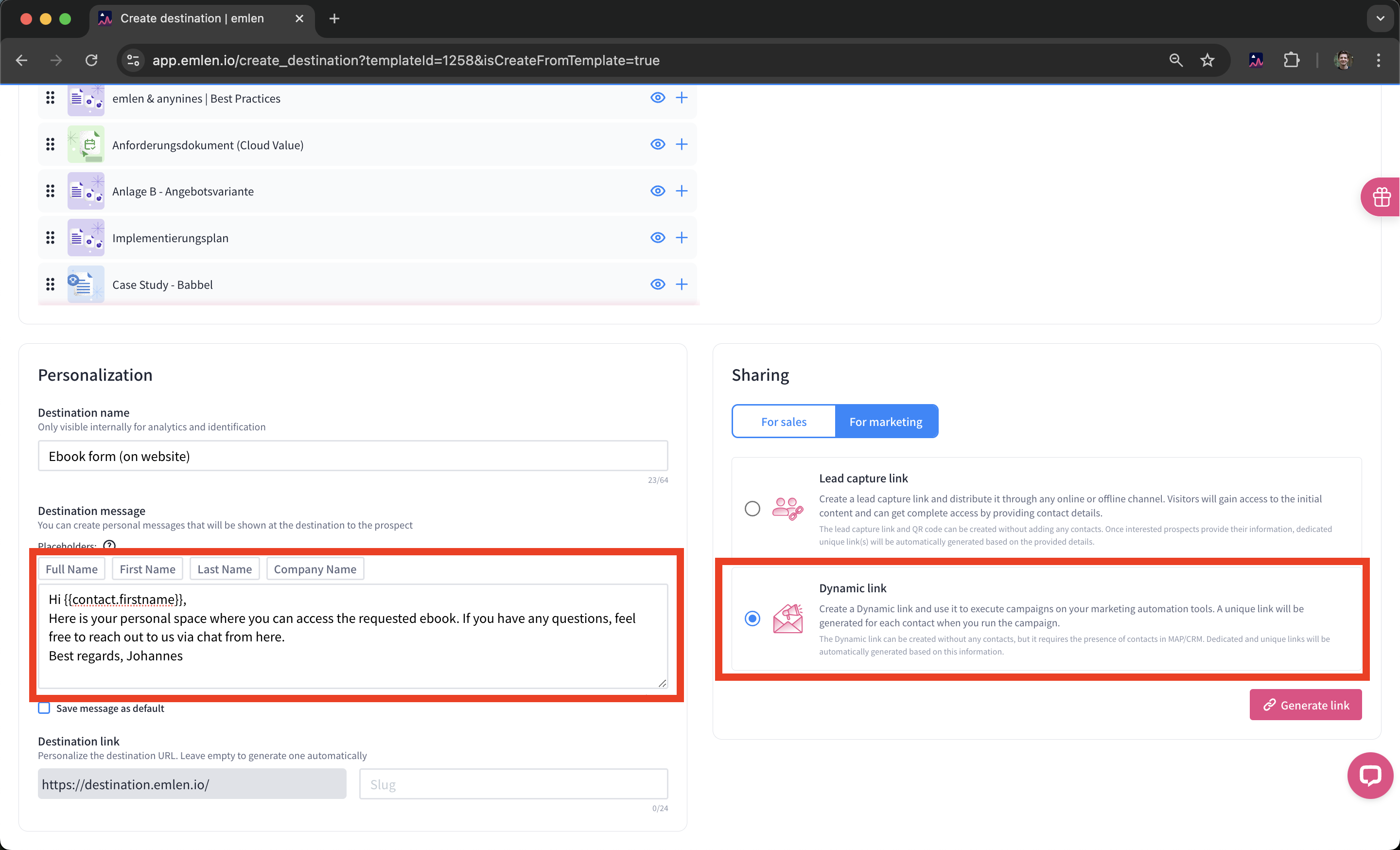
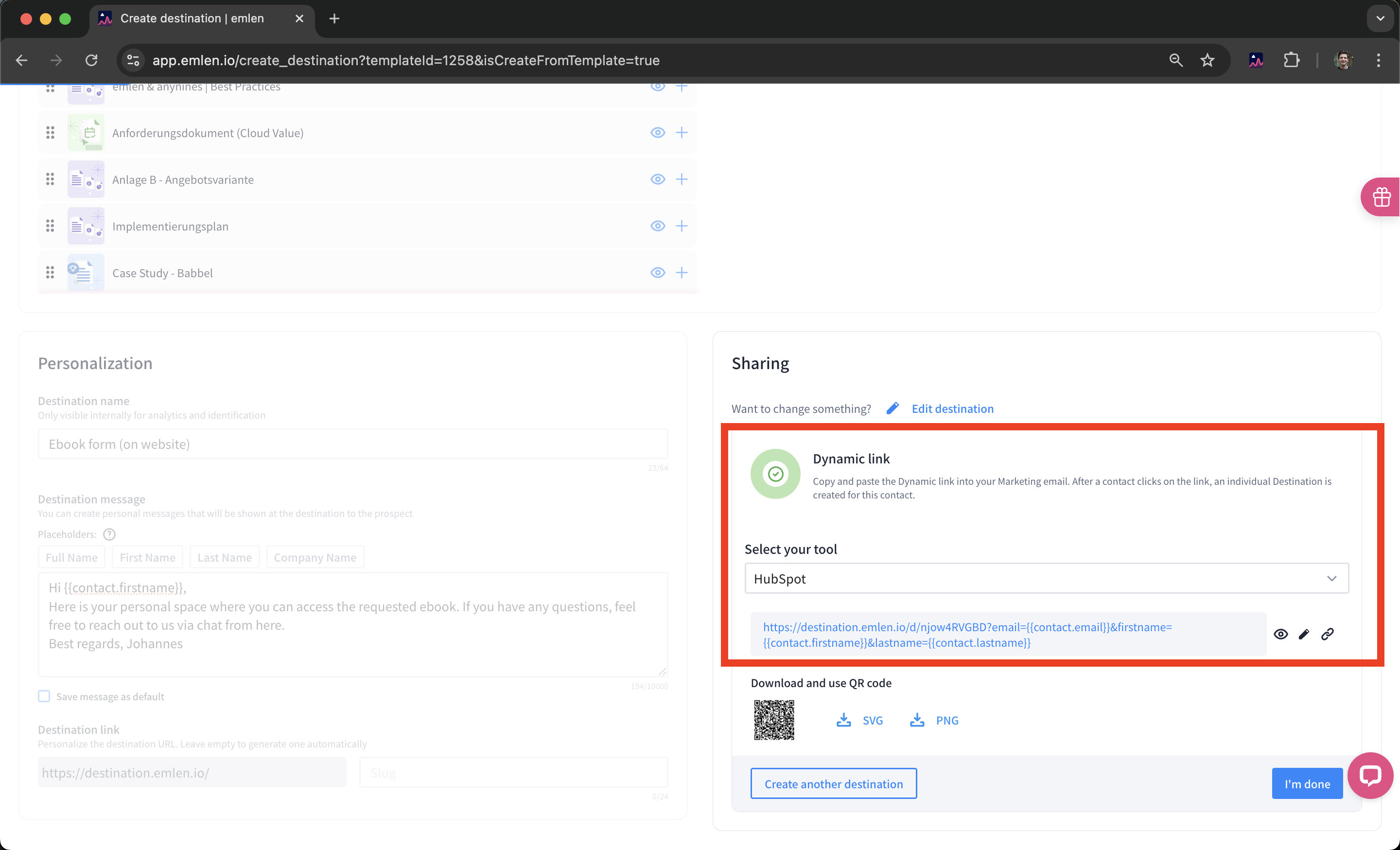
You can insert the dynamic link into a marketing email template that is part of the workflow responding to the inbound request.
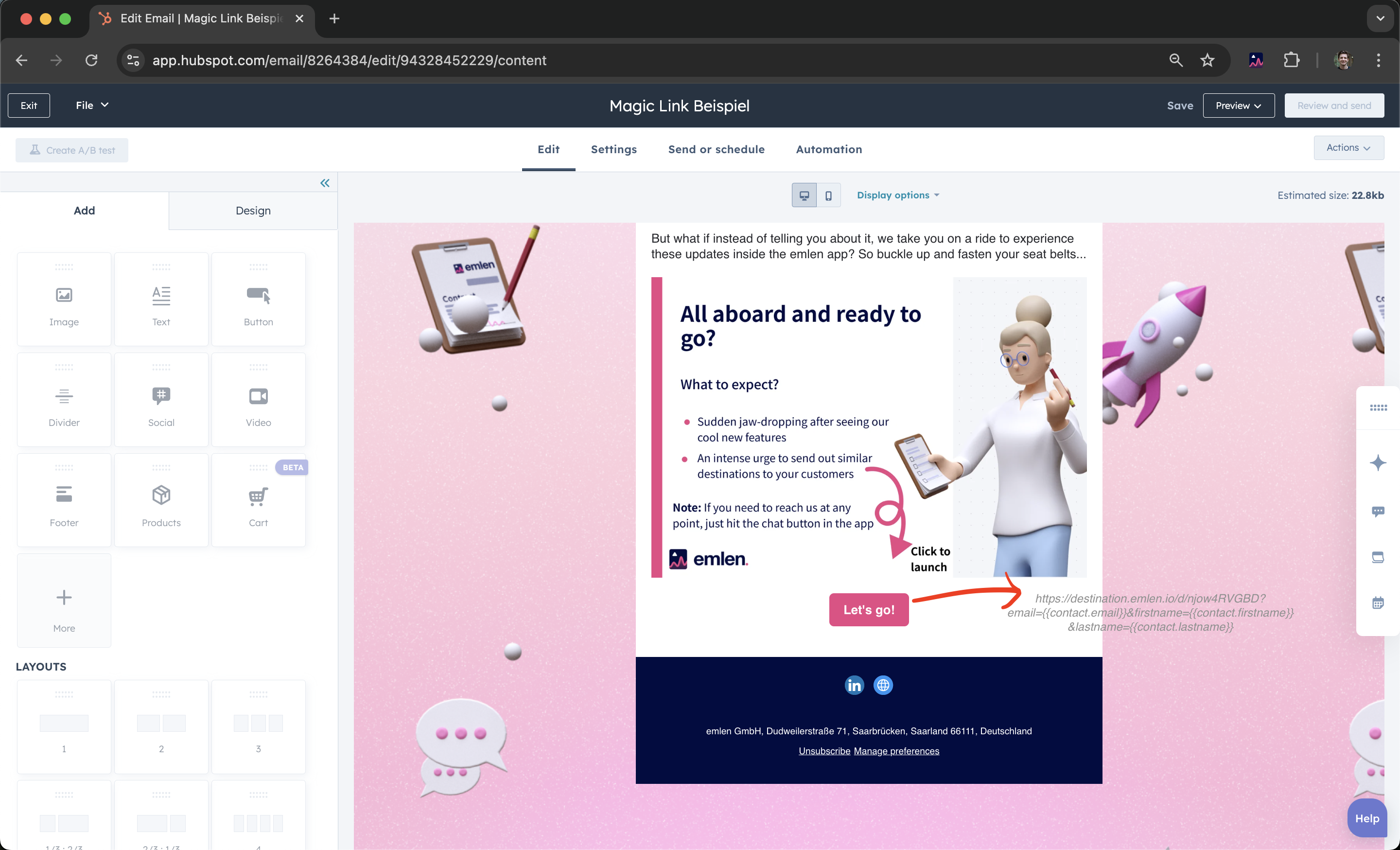
During the email send-out, the following placeholders will be replaced with the specific contact properties:
- First Name (optional)
- Last Name (optional)
If you plan to use First Name or Last Name in the email body or the emlen Destination, ensure you collect this information through the lead form.
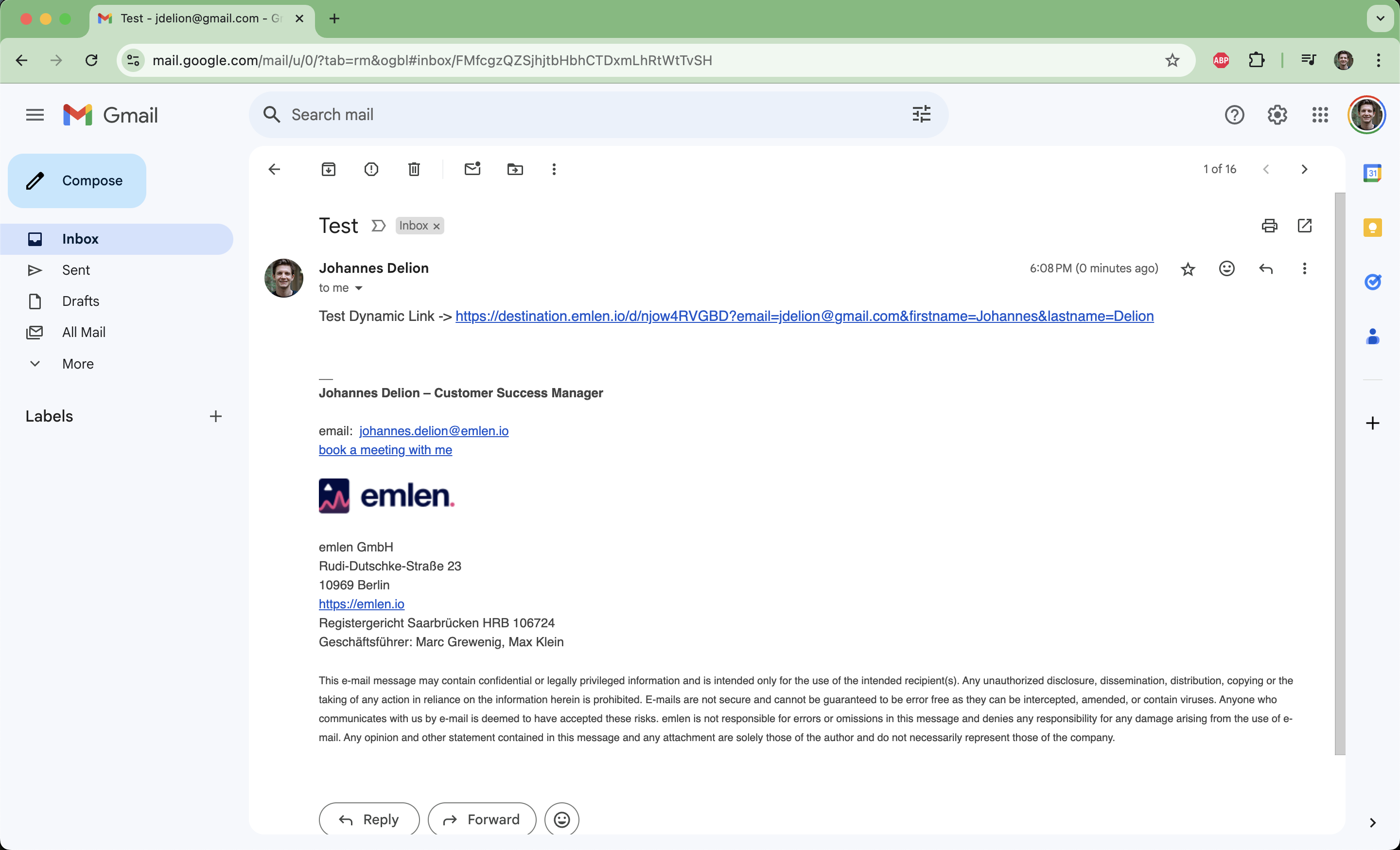
When the contact clicks on the link or CTA button, an individual emlen Destination is created. This enables a fully automated process for providing a personalized emlen Destination triggered by a lead form submission on your website.
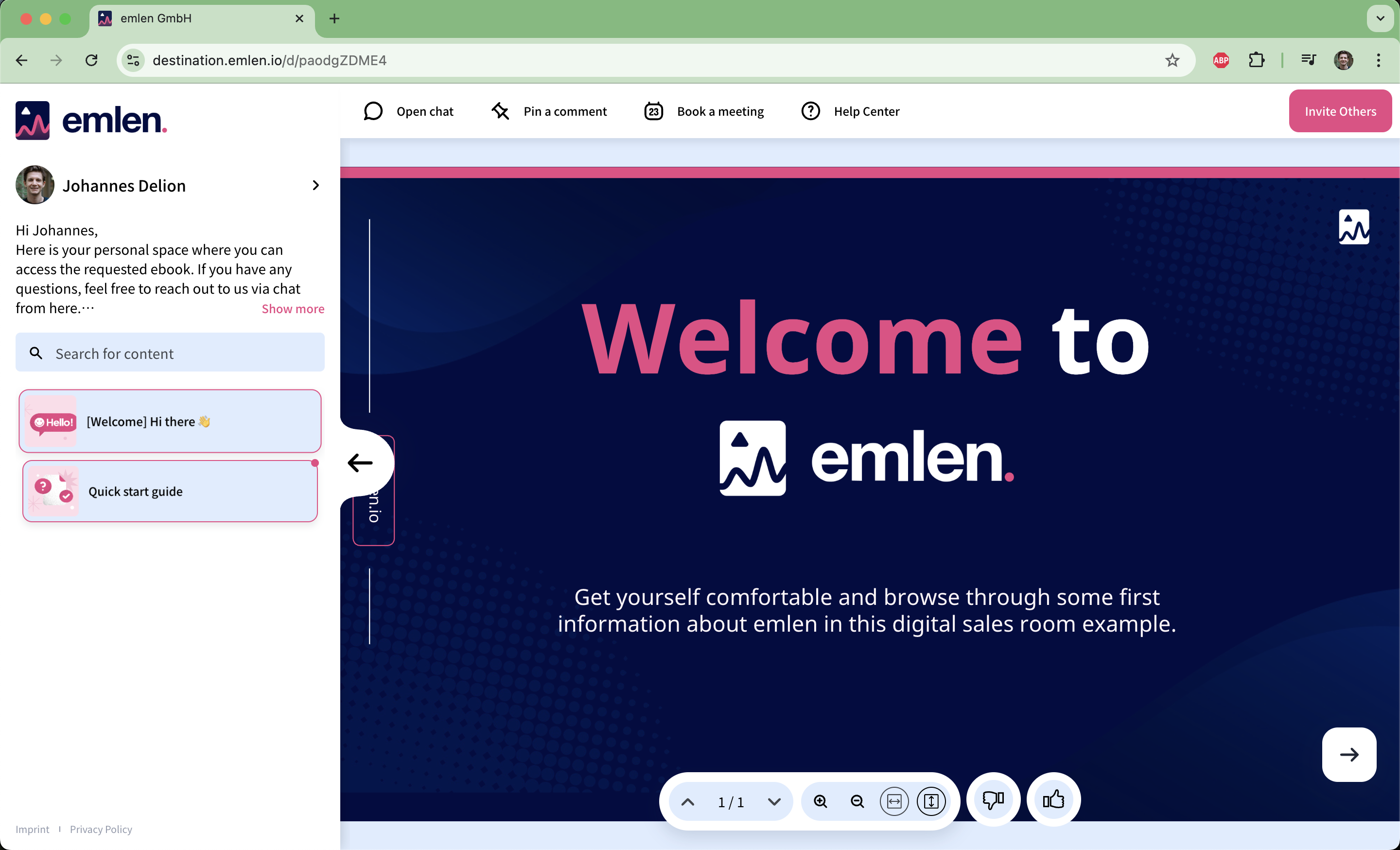
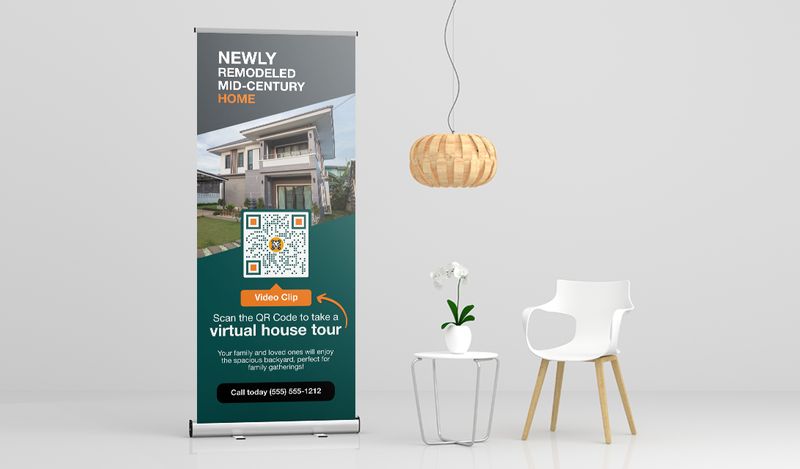
1.3 QR code for offline event + Lead Capture Link
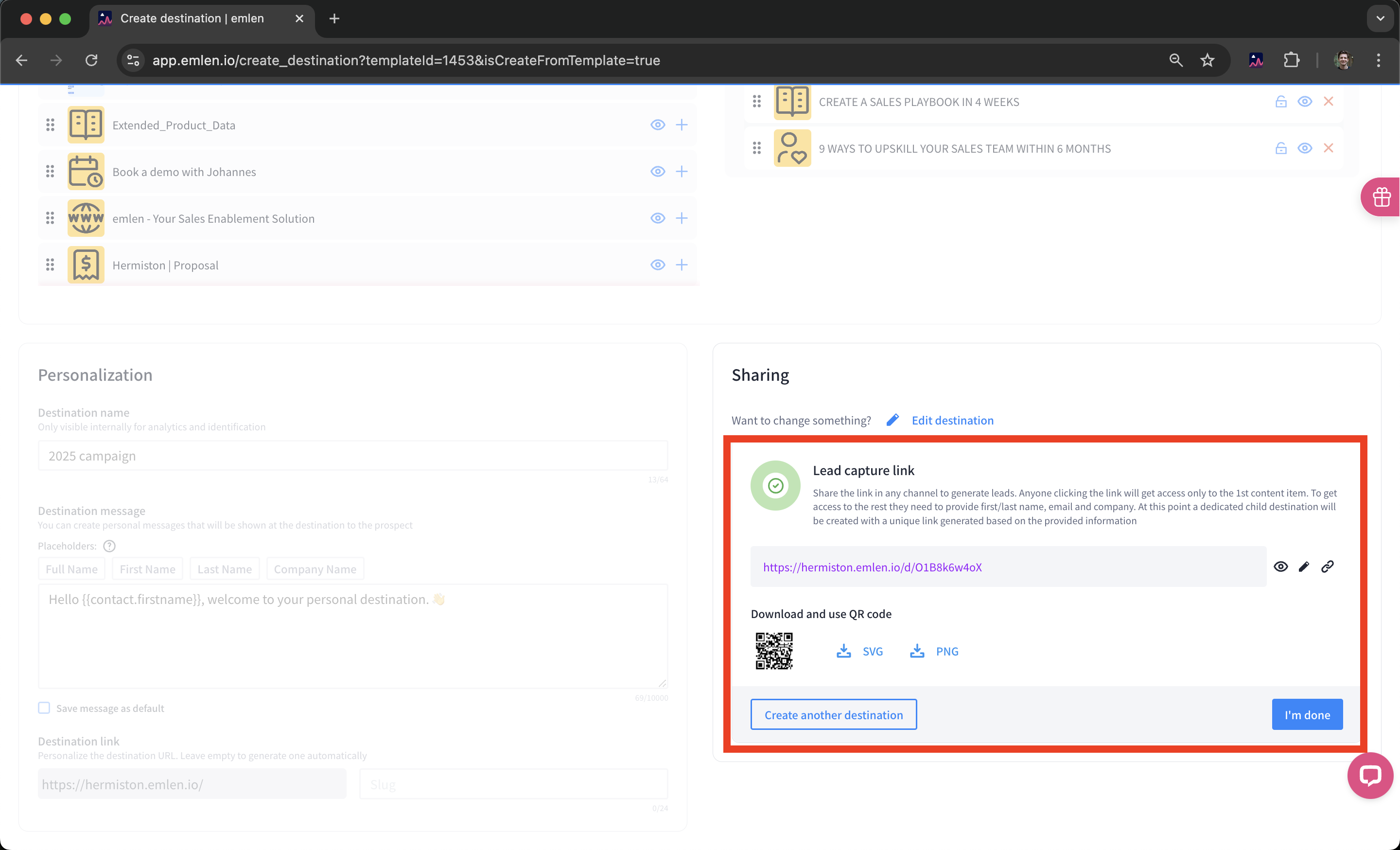
The Lead Capture Link is designed for audiences where you don’t yet have their contact details. A practical application is to generate a QR code from the link and display it on a physical flyer or event booth roll-up.
When a contact engages with the Destination and interacts beyond the first content asset (teaser document), they will be prompted to provide their contact details.
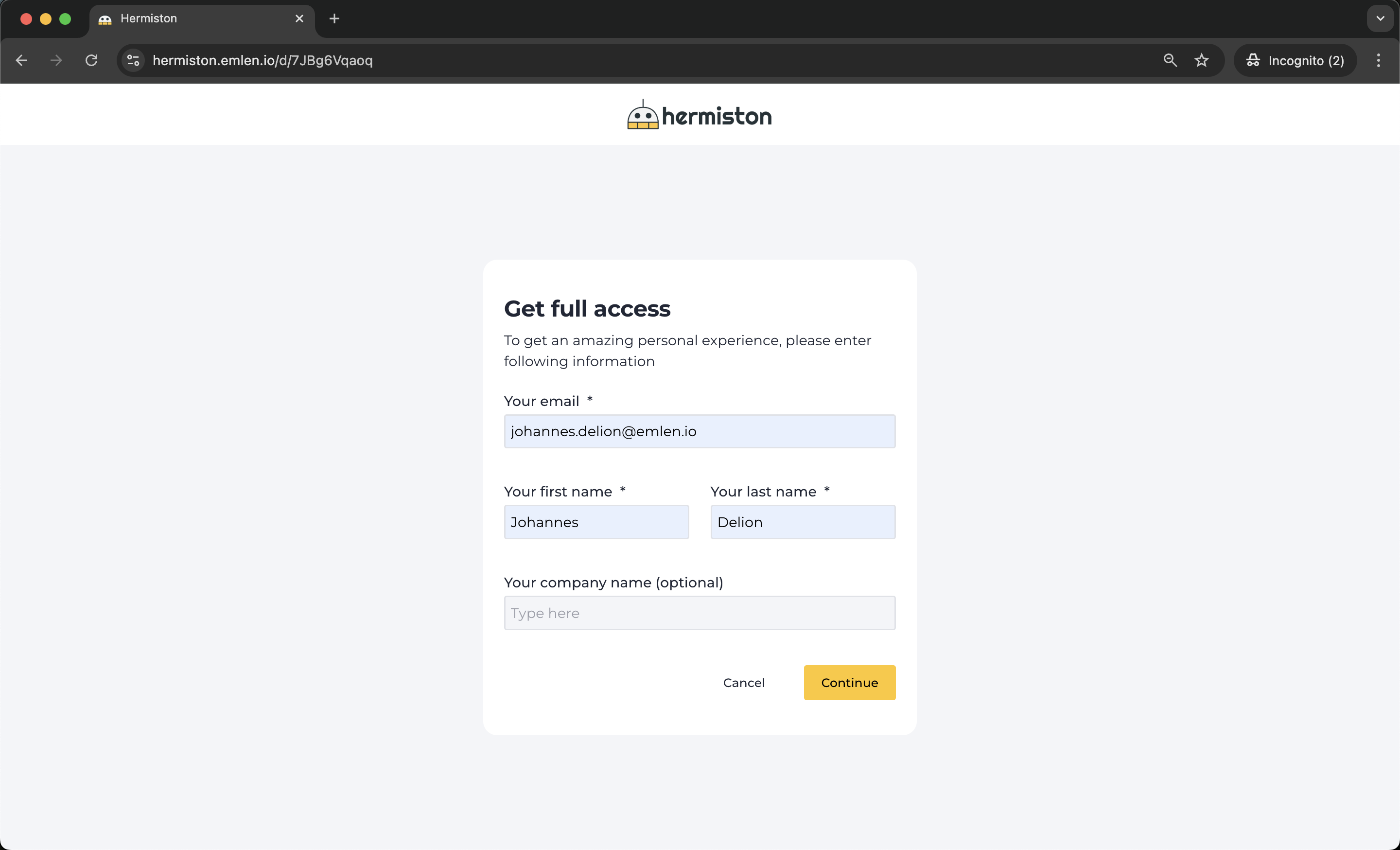
After submitting their details:
- A personalized Destination is automatically created for the contact, which you can further customize as needed
- The subsequent steps (e.g., HubSpot workflows) follow the same process as described in the previous examples
There are additional options as well:
- (Cold) Email campaign -> Dynamic link
- After first/cold call -> Personal Destination
- LinkedIn outreach (1:1) -> Personal Destination
- LinkedIn: behind an ad -> Lead Capture Link
- On a business fair / offline event -> Personal Destination
From these starting points (as described above), the contact typically enters your nurturing process until the first meeting or demo. If the lead is qualified, this often leads to the creation of a sales opportunity (e.g., a HubSpot deal).
2. Sales stage
After your first meeting or demo, if the lead is qualified, you can proceed in one of two ways:
- Create a Personal Destination: If the contact was previously engaging with a generic Destination, create a personalized one tailored to their needs
- Update an Existing Personal Destination: If a personal Destination already exists (e.g., created via a Dynamic or Lead Capture Link), customize it further to reflect the lead’s specific context. You can also add new documents, such as a demo recording or follow-up materials
The sales Destination will now appear at the top of that contact’s list of Destinations.
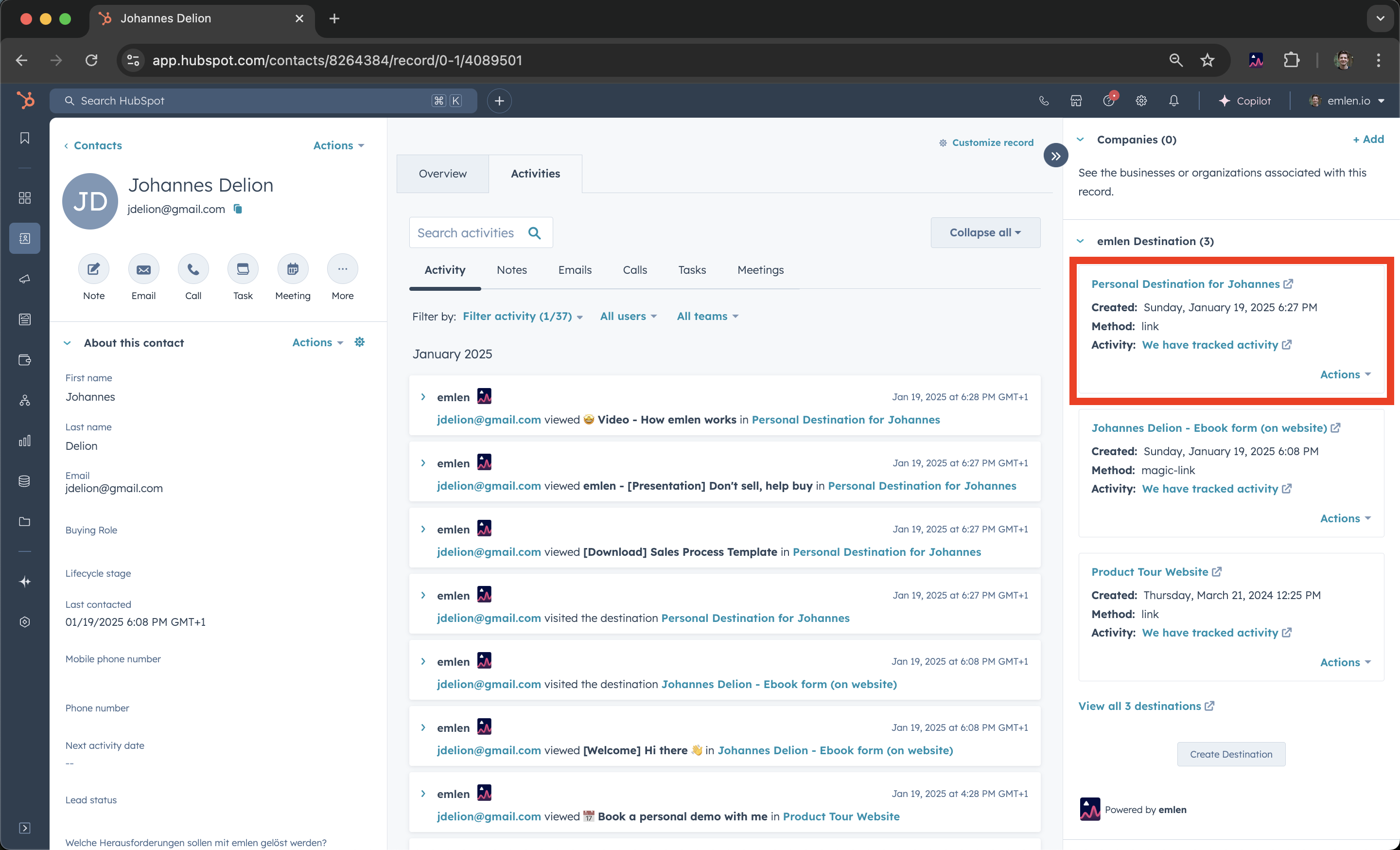
Alternative workflow with HubSpot deals
- Create a HubSpot deal
- Attach relevant contacts
- Click "Create Destination" from the deal page
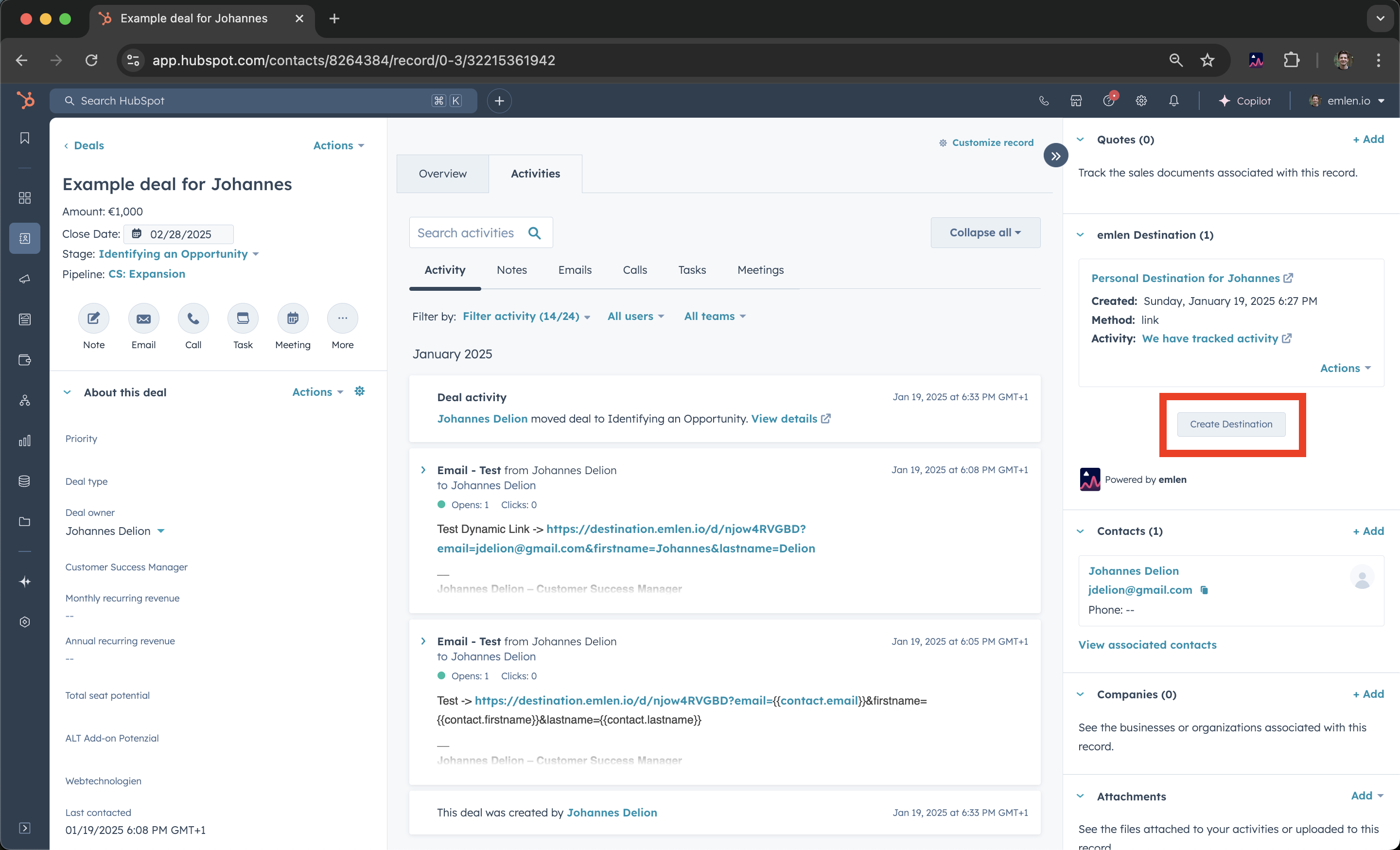
This links the HubSpot deal directly to the emlen Destination. If you create the Destination in the emlen app, it will automatically associate it with the correct HubSpot deal, provided the contacts are shared between both.
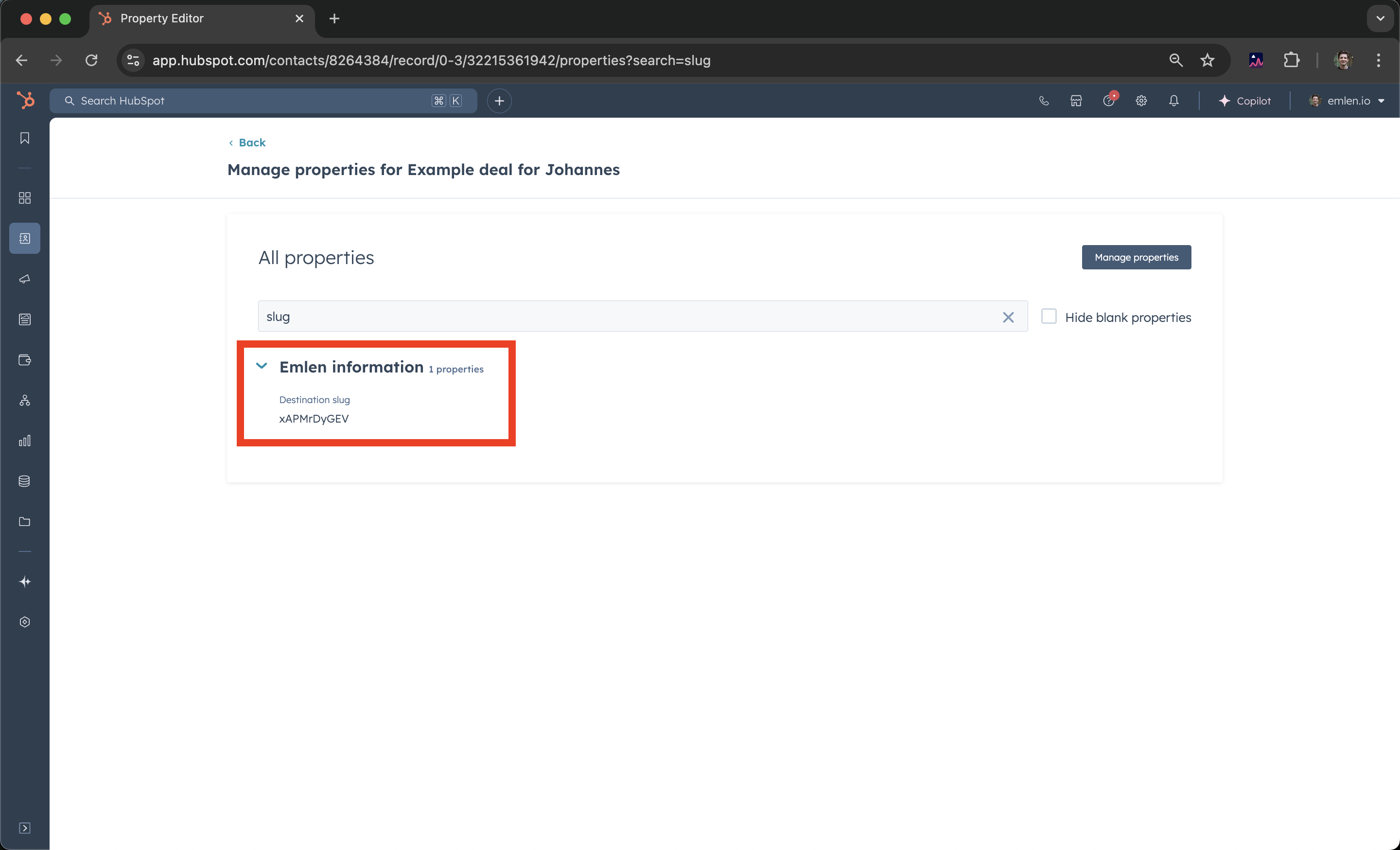
The Destination slug will now also be available at the deal level.
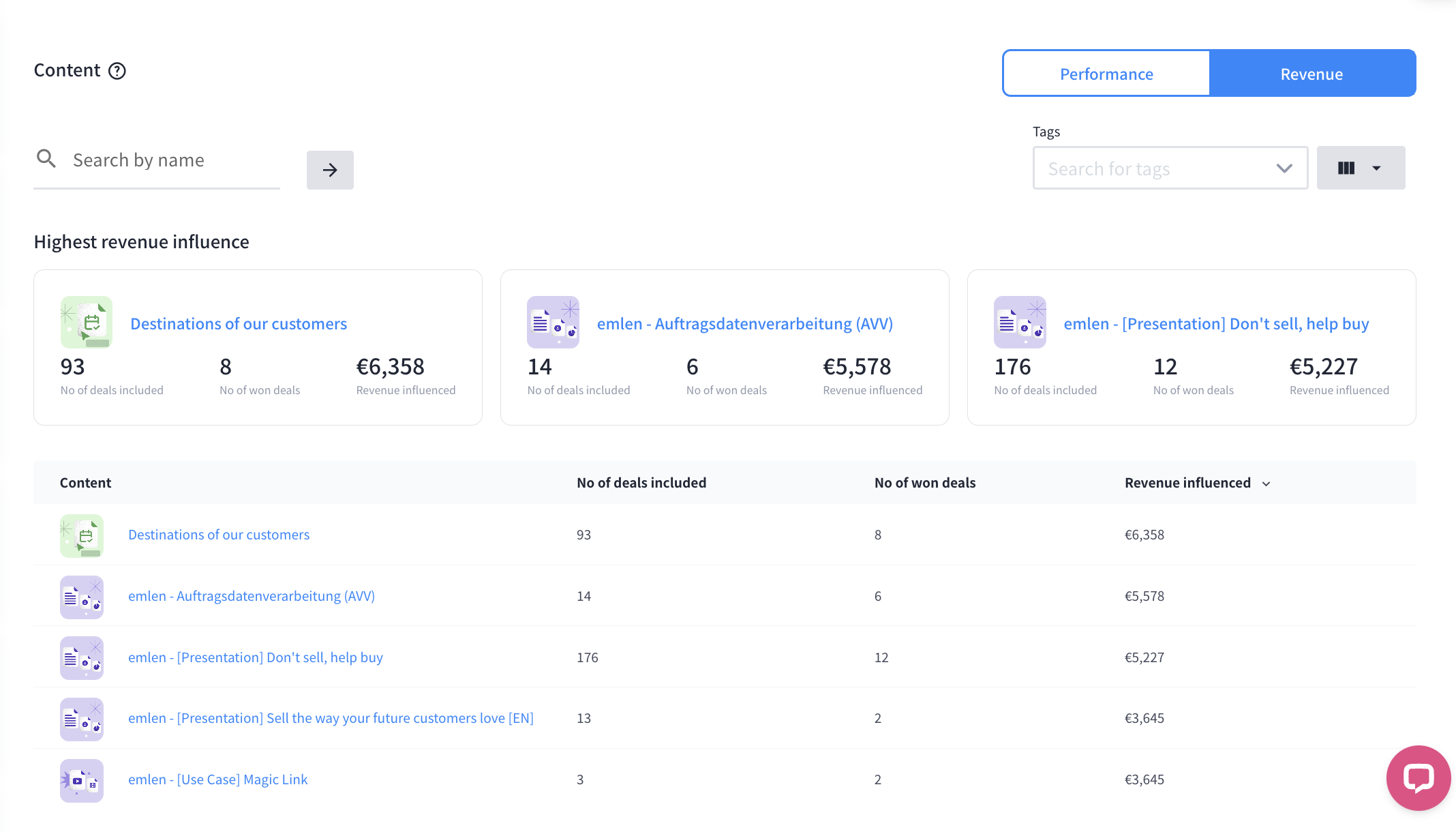
Once a deal is closed, emlen tracks the deal amount to measure the impact of content assets on deal success and revenue growth. This data is linked to your CRM deals, provided Sync Deals is enabled. This feature helps you quantify the value of your content assets in driving business outcomes.
3. Customer stage
To continue using an emlen Destination after a deal is closed (e.g., for onboarding, account management, or upselling), follow these recommendations.
Update the Destination for Onboarding
For onboarding purposes, update the emlen Destination individually to include personalized content, instructions, or materials specific to the customer’s needs
Upselling campaign into existing customer base
If you want to share content or updates with a customer segment or your entire customer base, follow these steps:
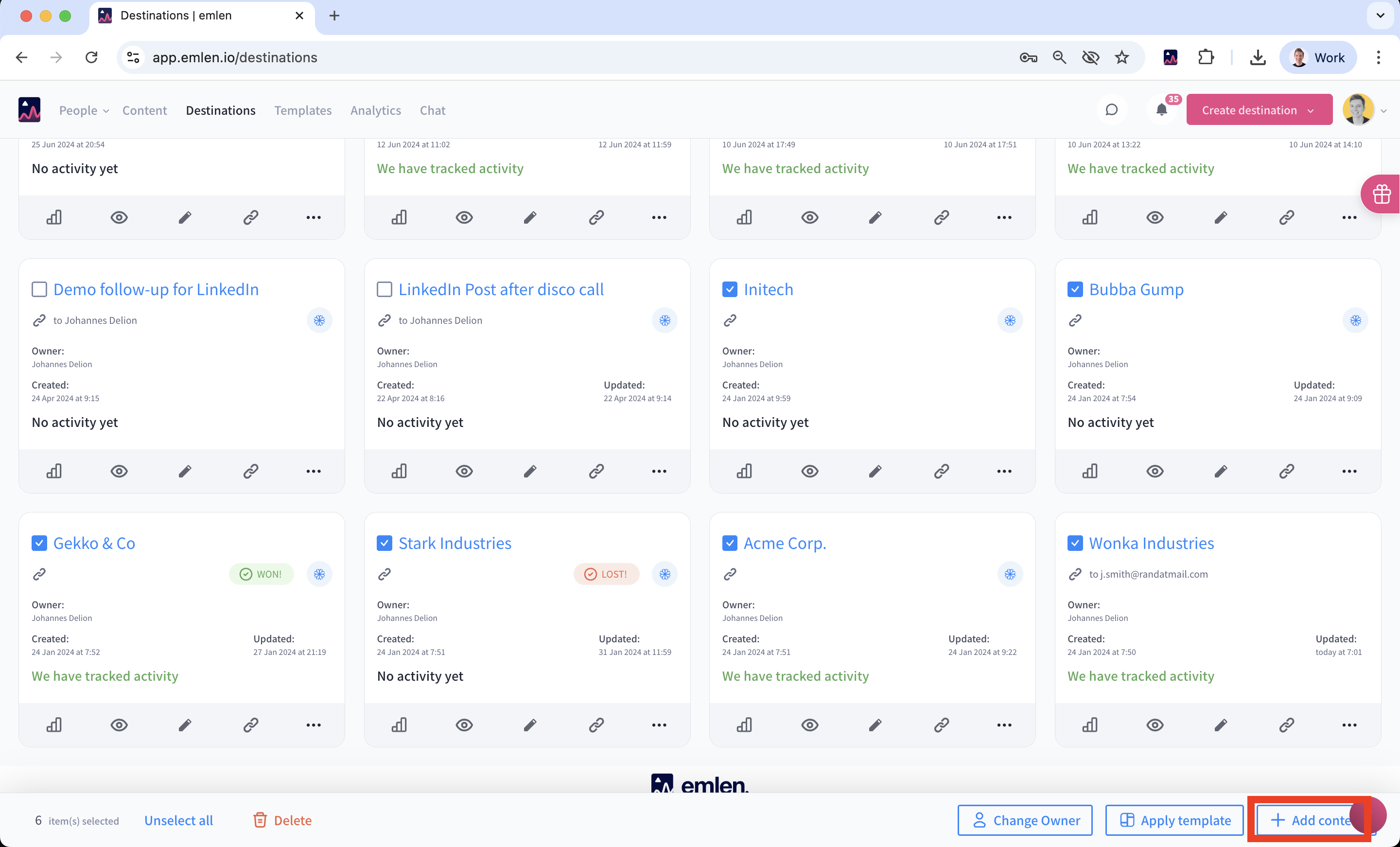
- Find Relevant Destinations:
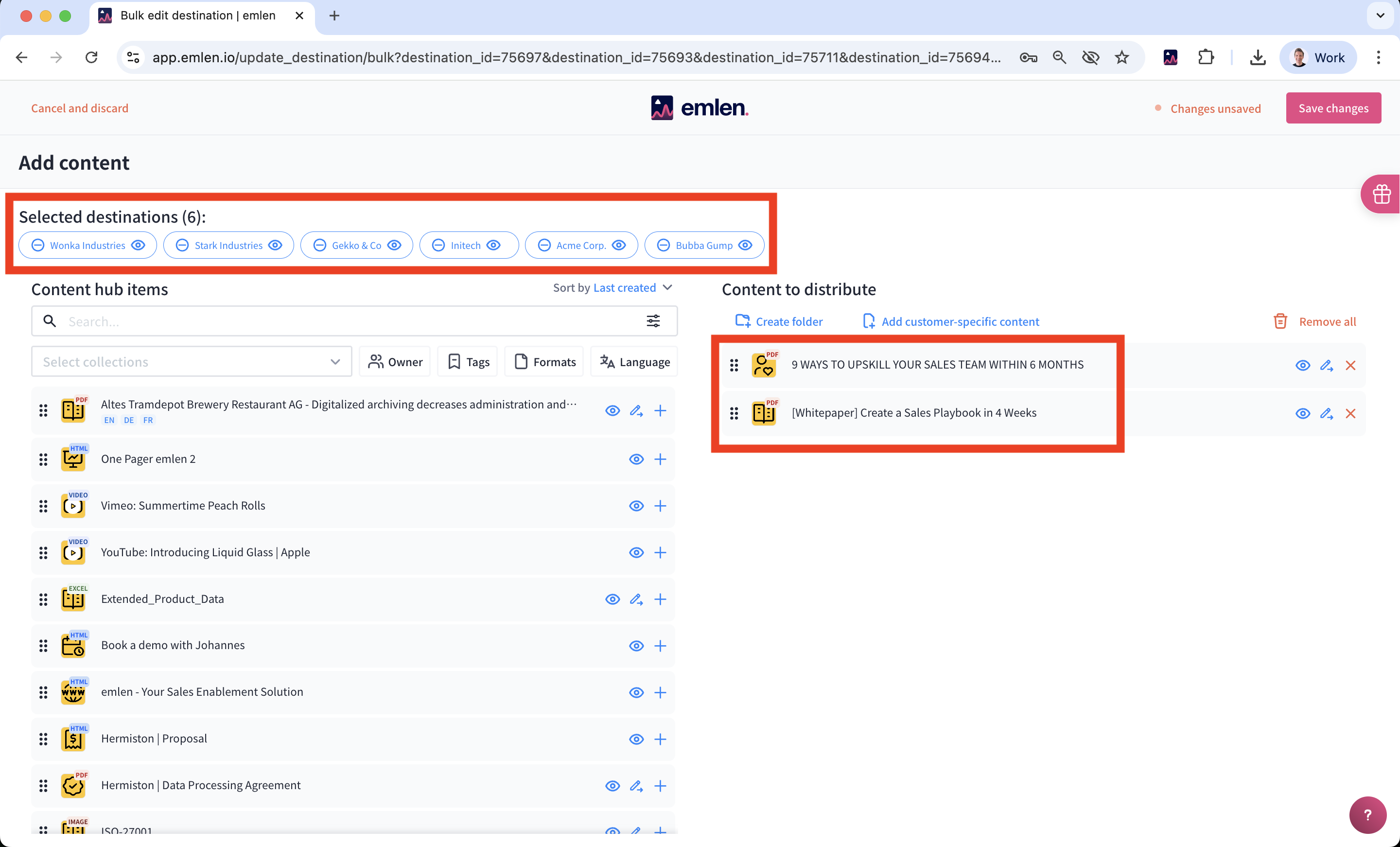
- Add Content in Bulk: Select the Destinations and click “Add Content” to include new assets, such as promotional materials or product announcements
- Notify Contacts:
- Send notifications directly from emlen
- Alternatively, use a HubSpot email template that references the “Destination slug” property to send personalized links to the appropriate Destination for each customer
Notifications directly from emlen:
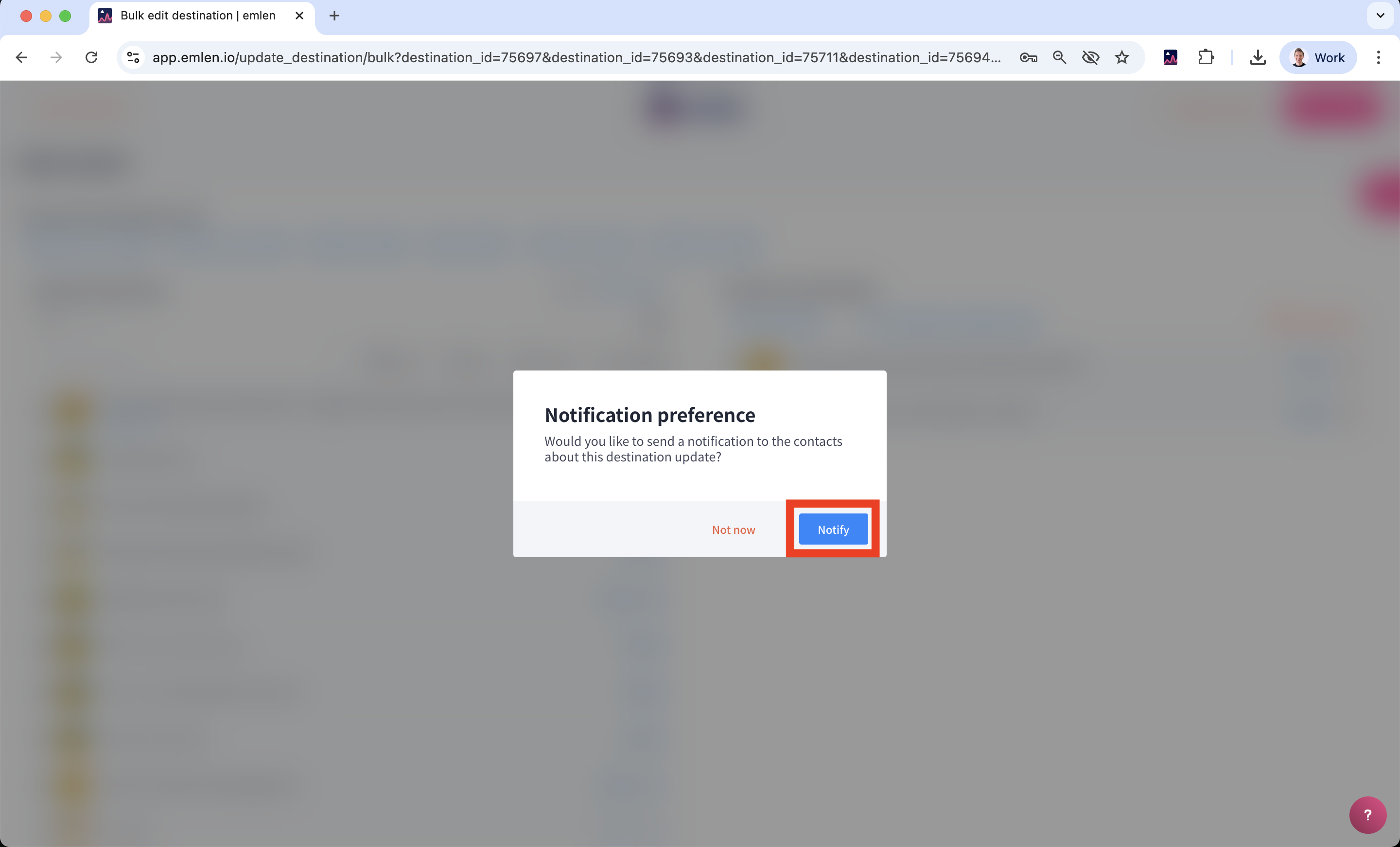
Choose your email template to notify all contacts linked to the selected Destinations: