
Setting up AI-Chat in your Destinations
The AI chat is a great tool to give users the possibilty to find answers quickly without browsing through all the content inside the destination or ask the sales manager.
This is a step-buy step guide on how to setup the AI Chat in your destinations.
1) Activate AI Chat in your destinations
To give buyers access to the AI Chat, you need to activate it in your destinations. You'll find this option under "Advanced Settings" when creating a new destination or updating an existing one:
Note: If you want the AI Chat to be available in all your new destinations by default, activate it in the settings of your templates.

If you scroll down, you will see an option to activate the AI Chat.
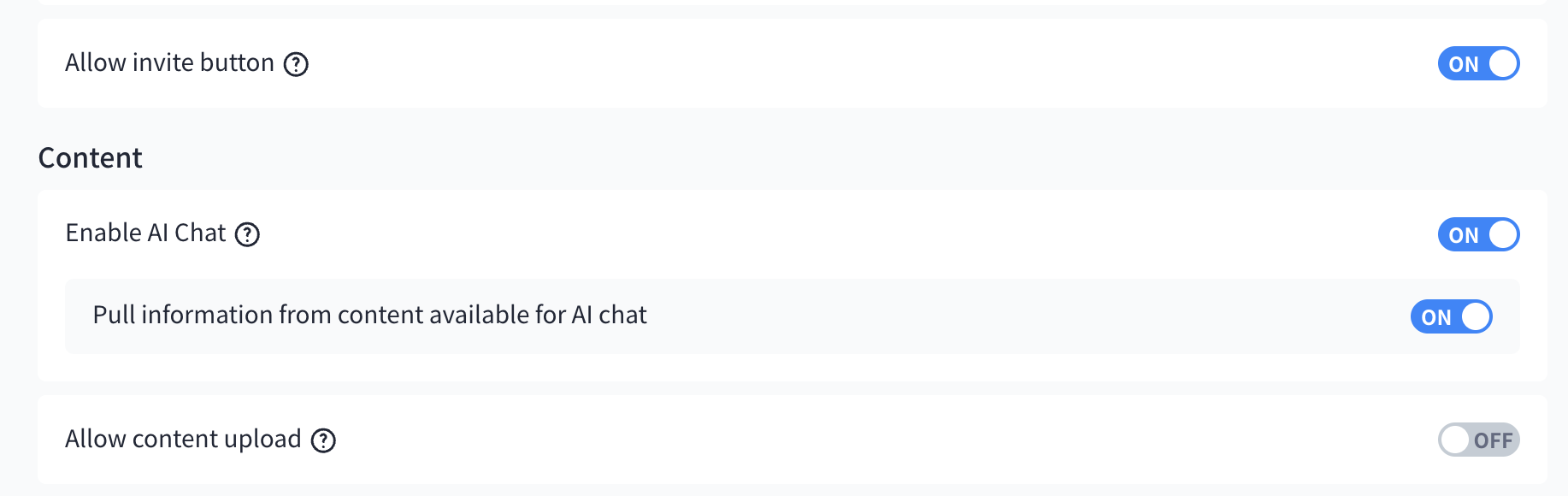
You have two options here:
You can either make AI chat search the content inside the destination only or the whole content of your content database.
1) "Enable AI Chat"
>>> When buyers ask a question in the AI Chat, it will only take the content WITHIN the destination into consideration
2) "Pull information from content available for AI chat"
>>> When buyers ask a question in the AI Chat, it will take the content WITHIN the destination into consideration + all of the "make available for AI" tagged content from your content hub.
2) Test & Adjust with Prompts
In order to test the setup of the AI Chat, create a test destination where you activate the AI Chat in the settings (see Step 2).
Copy the link of the test destination and open it in an Icognito Window (Chrome) or InPrivate Window (Edge).
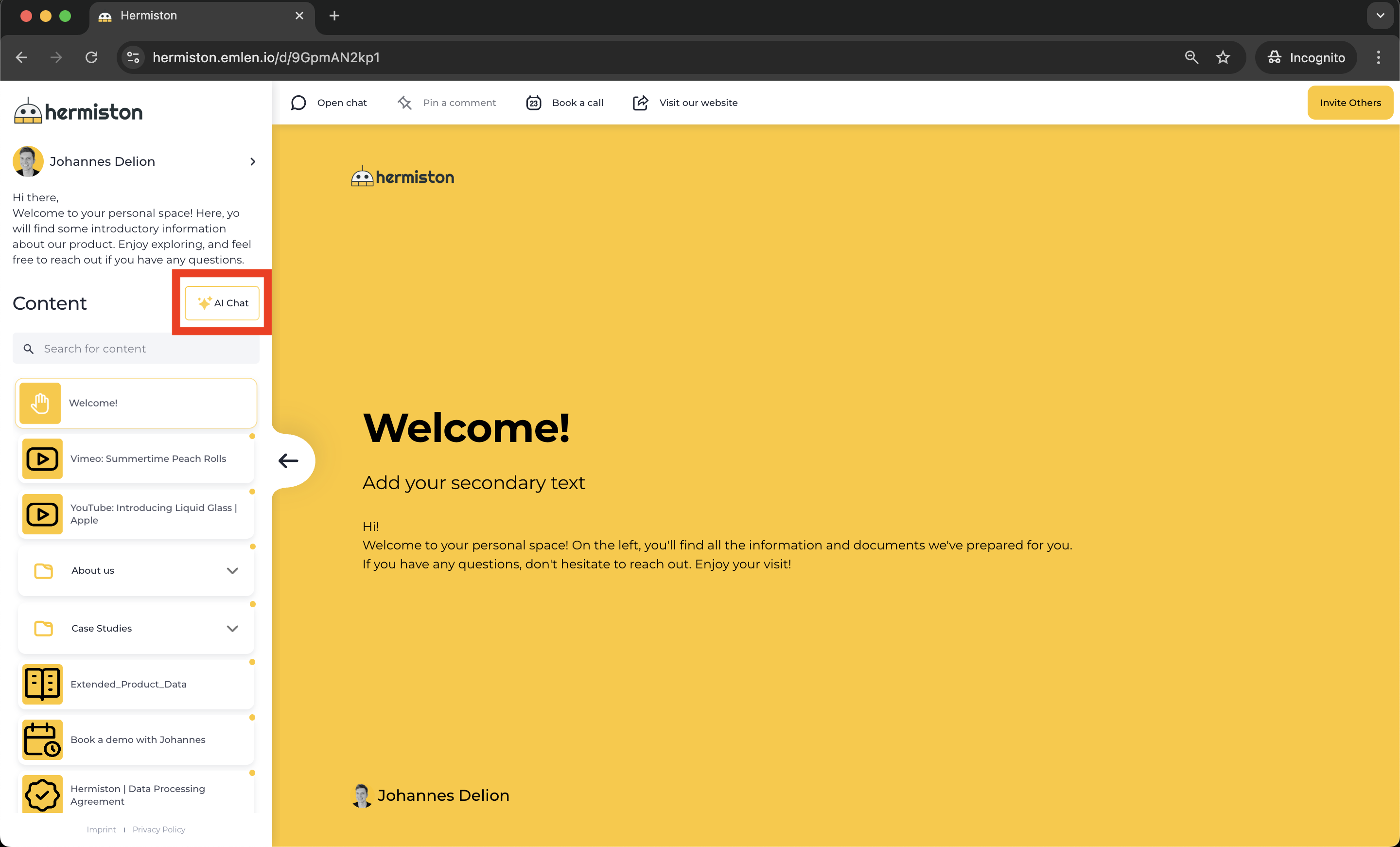
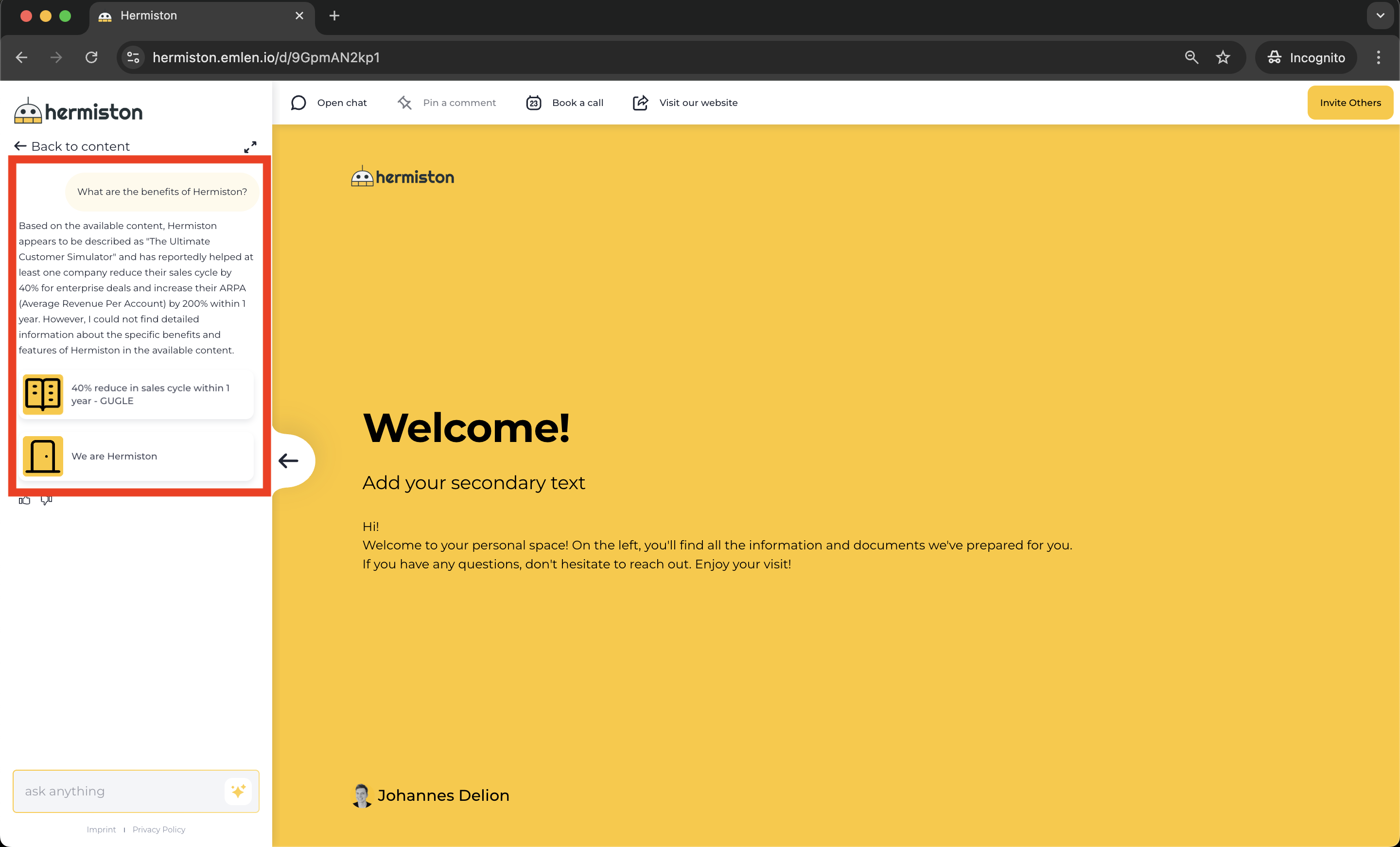
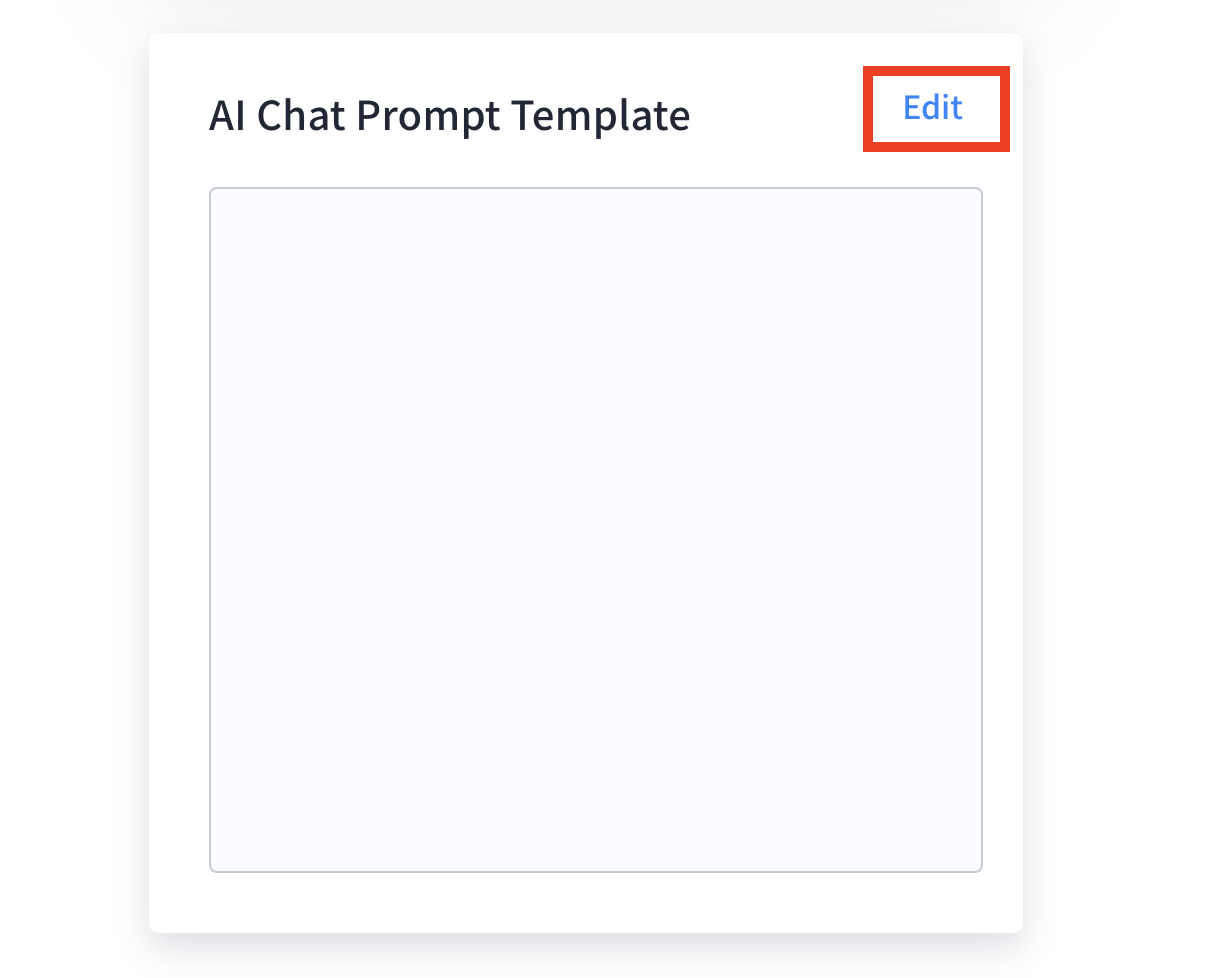
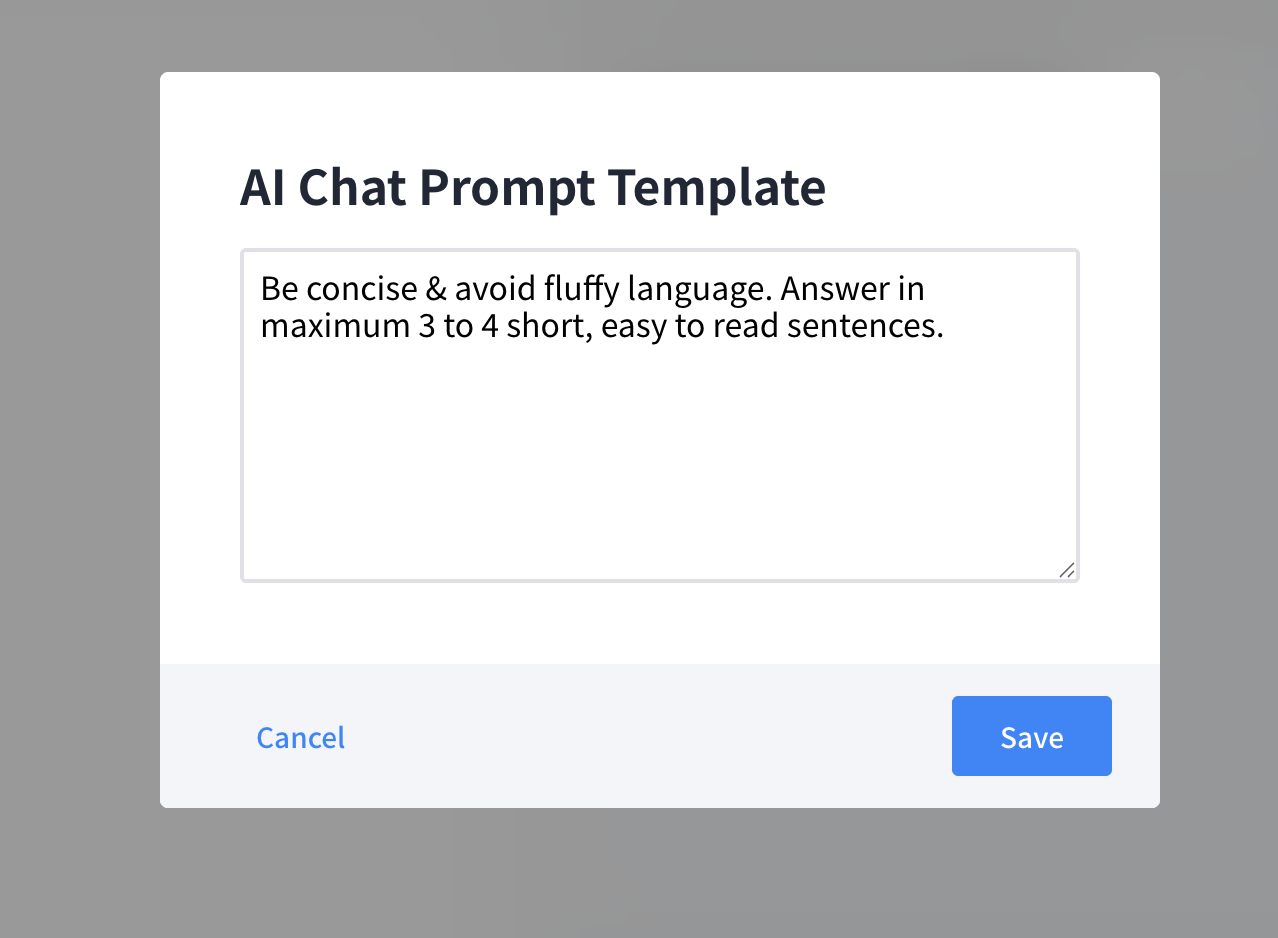
If you are not happy e.g. with the length of the answers, you can give the AI additional instructions on how to answer.
Go to "Settings".
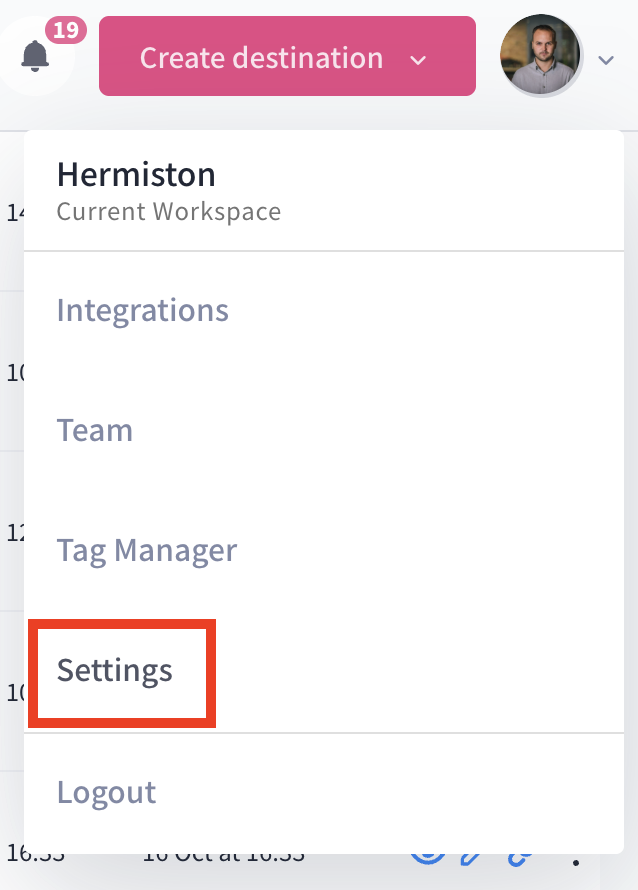
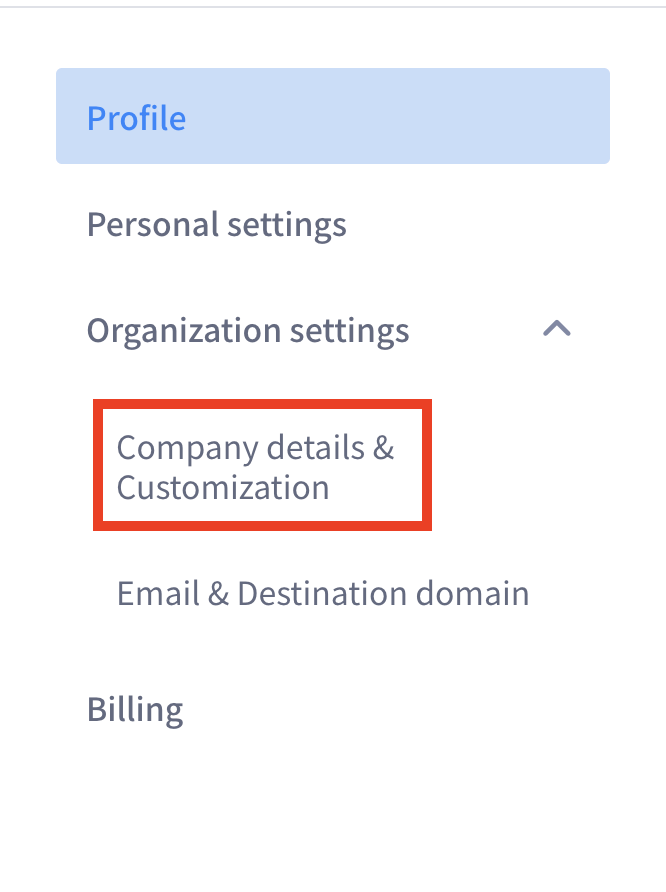
Go to "Company details & Customization" under "Organization settings":
3) Tagging content
a) Manually
The AI chat can process not only content within the destination, but from your whole content hub. The user can add content items to the destination when the AI Chat references them in the answers.
For that to work, you need to tag the content that should be available for the AI Chat in the content hub.
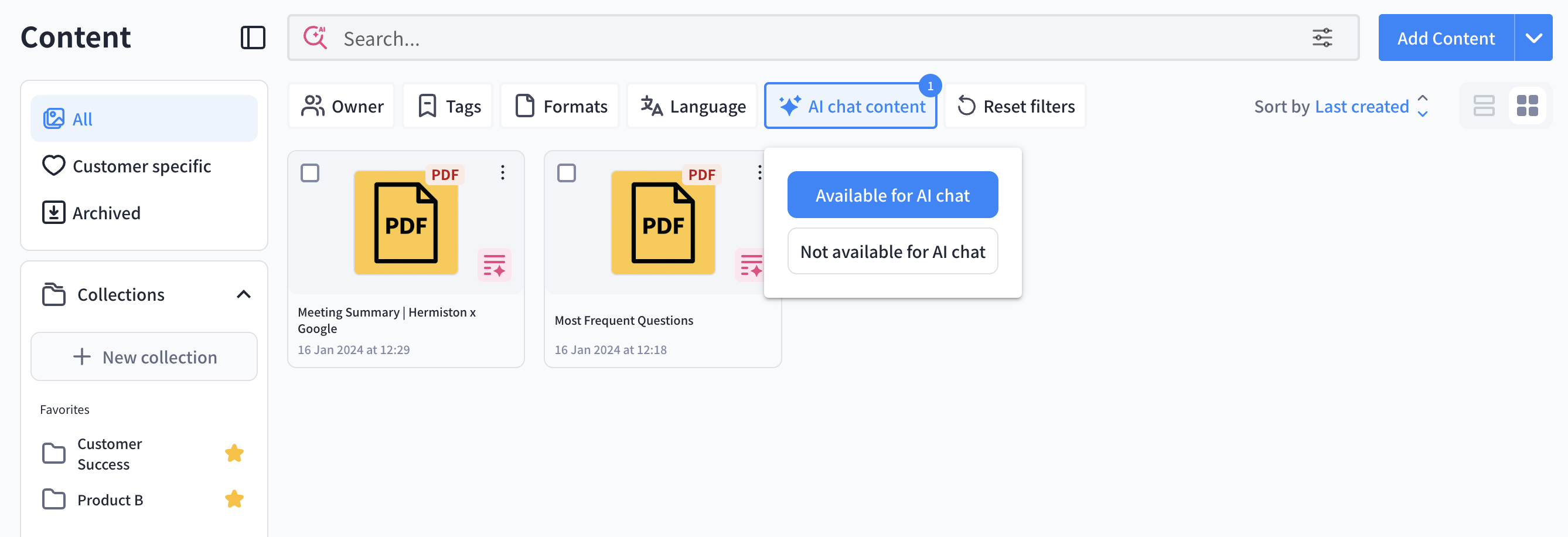
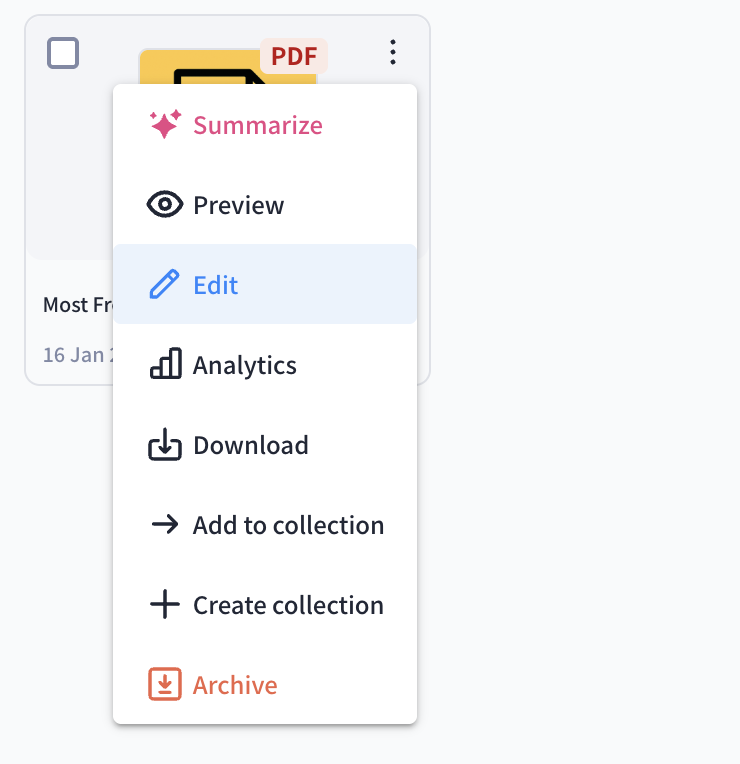
Click on the free dots at content asset you want to make available for the AI Chat and select "edit"
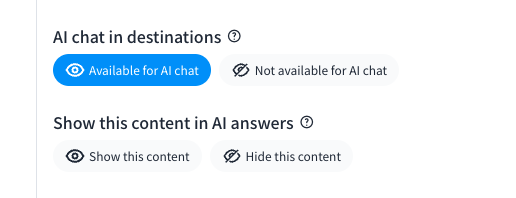
On the right side, you'll find the option "AI chat in destinations". Click on "available for AI chat".
If you want content items to be addable, chose "Show this content". If you don't want content items to be addable to a destination, chose "Hide this content".
b) Bulk content update
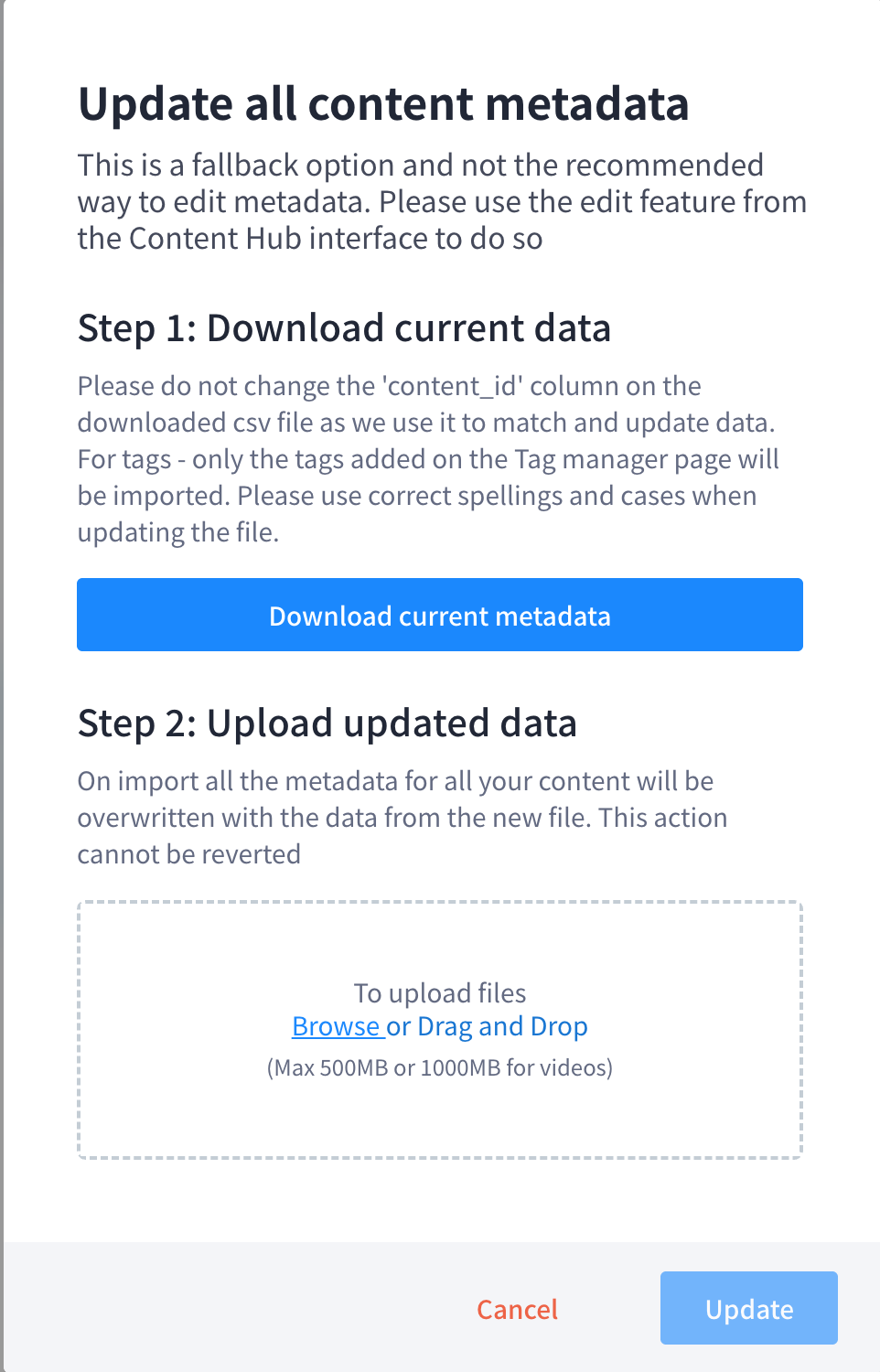
You can bulk update your content and activate the AI chat for all content at once. Go to "Update content metadata".

Then download the csv file with your current content data.
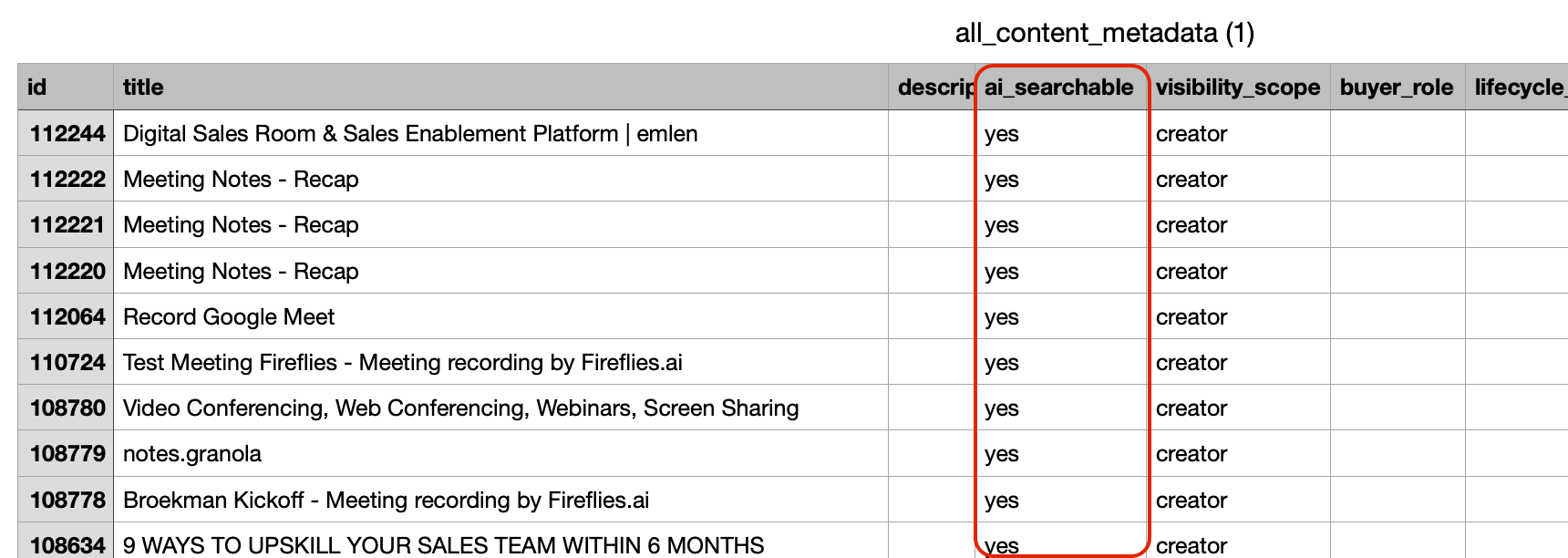
Open the file in excel, numbers, google sheets etc. and go to the column "ai searchable". Write "yes" in this field for all content items and save it again as csv file.
Then go back to "Update content metadata" and upload the csv file.